
How to Make Content Unavailable to Users
If you are building your course while you have students in the course, there may be some content you do not want them to view. This tutorial shows you two ways to keep content unavailable to students.
- Toggle visible/hidden in content
- Setting date and time restrictions on content
Updated Summer 2021
Click here for a Printable version
Toggle Visible/Hidden in Content
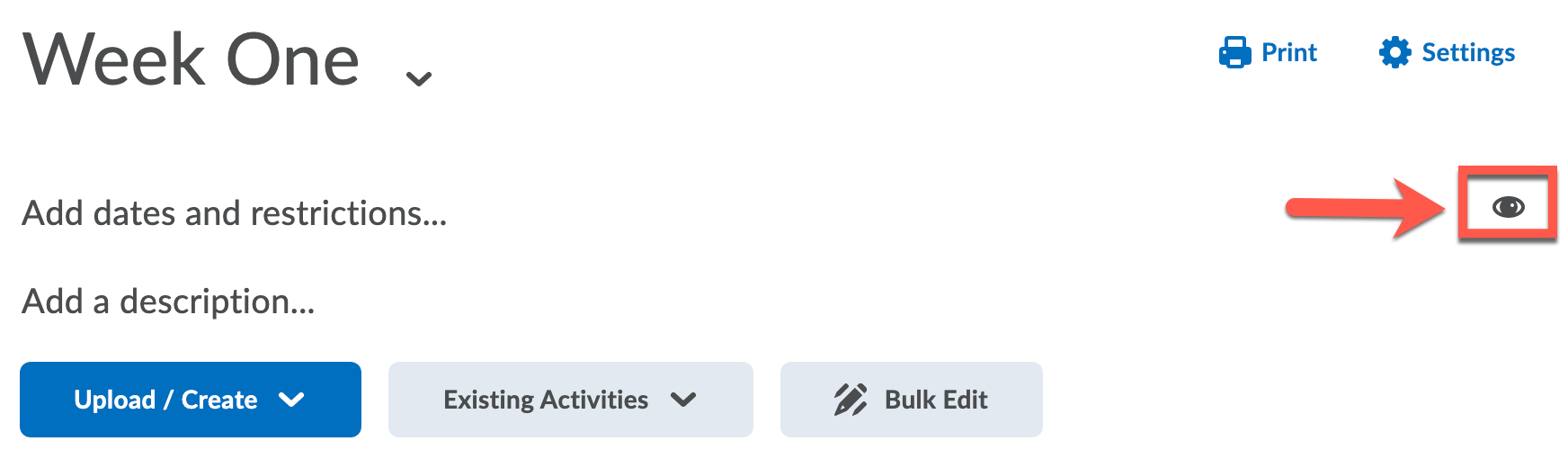
- Under Content, find the module or item for you would like to change the visibility.
- Once open, click the eyeball icon to toggle Visible:
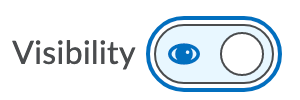 or Hidden:
 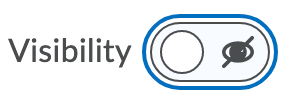 .
.
Setting Date and Time Restrictions on Content
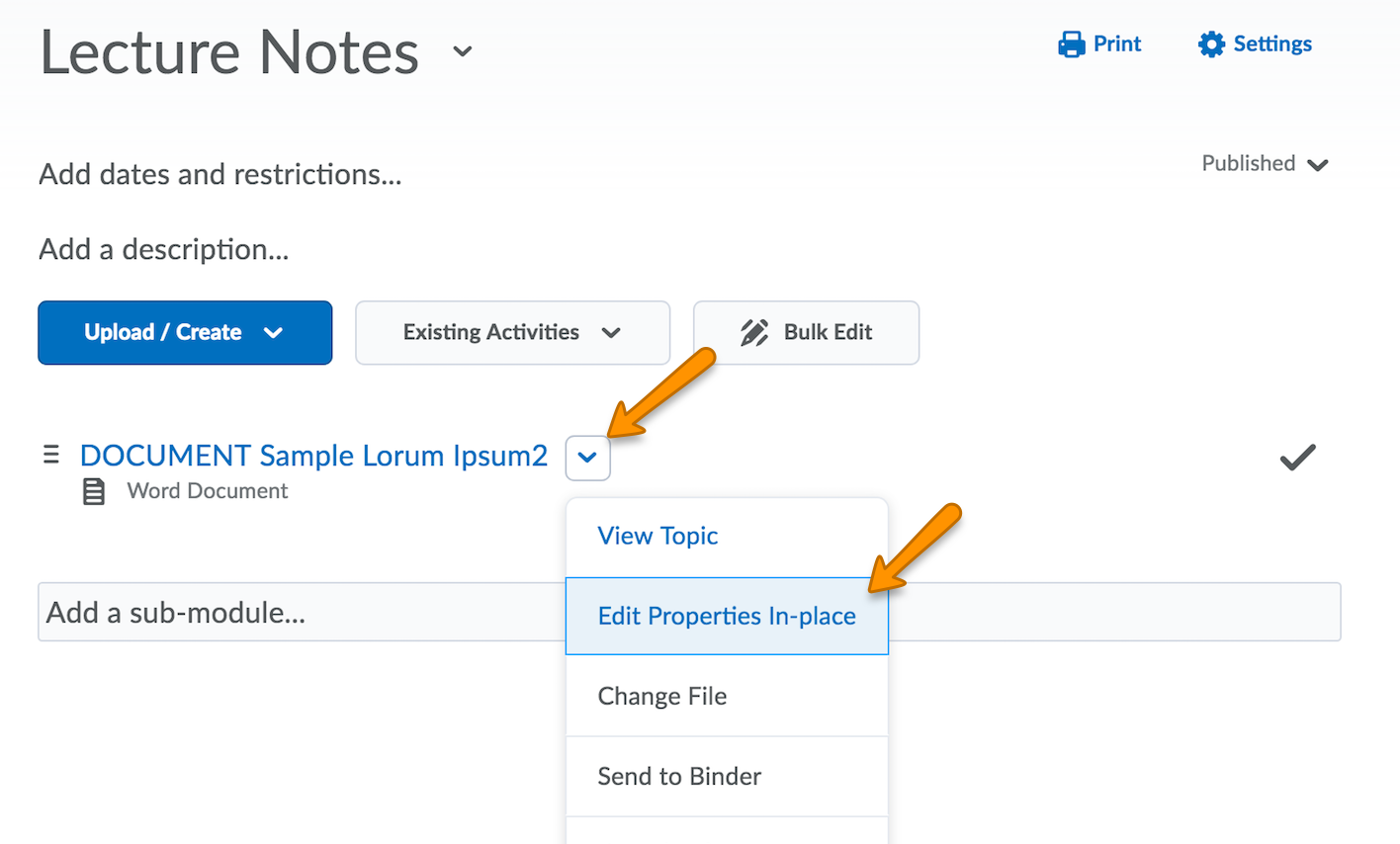
- Click on the downward arrow next to your content’s title. Select Edit Properties in Place.
- Set the Start Date and End Date for content availability. You can also set Release Conditions here.
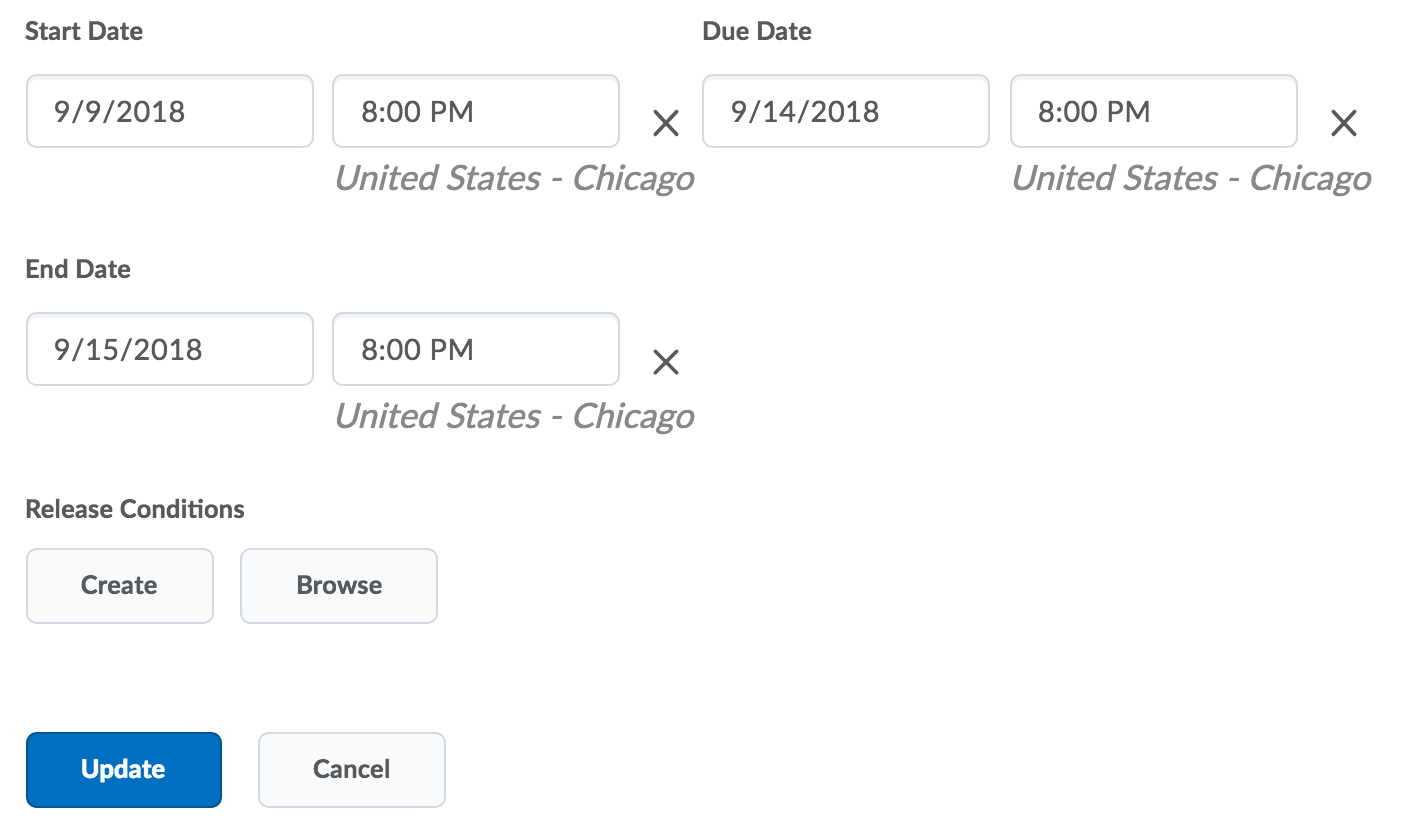
Note: A due date is not necessary for content items, but can be used in other areas of Brightspace. If the end date is later than the due date, this will allow for submissions that will be marked “late.”