Brightspace Frequently Asked Questions
Check out our newly updated Brightspace FAQs! This list runs through the most common questions the Brightspace Support Team gets throughout the year. If you have any questions not listed here, be sure to contact our Support team for assistance.
Support Schedule
The Vanderbilt University Brightspace Instructional Technologists are available for support between 8 AM and 4 PM Monday through Friday. Any emails received after 4 PM will be addressed when our team returns to normal support at 8 AM the following business day. While we’re out, we encourage you to utilize our On-Demand Resources to answer any questions that arise.
Quick Eval allows instructors to view an aggregated list of all student activity awaiting evaluation. That includes submissions to assignments, quizzes, and discussions. Please check out the FAQ to learn more about Quick Eval’s functions and limitations.
- Overview of Quick Eval
- Quick Eval FAQs
Created Spring 2021
Printable Guide
An Overview of Quick Eval
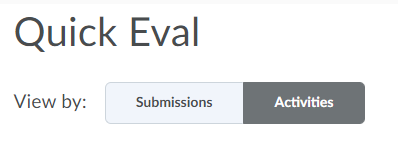
Quick Eval is located on your main Brightspace dashboard (not within a specific course). You can view activity by Submissions or Activities.
Submissions – An exhaustive list of everything that needs to be graded. You can sort by student name, activity name, course, or date by clicking the top headings. This is good for looking up a specific student’s work.

Activities – A list of courses with their corresponding activities. This is useful for evaluating all work for a specific assignment, quiz, or discussion.

Quick Eval FAQs
-
How do I access the Quick Eval tool?
Quick Eval can be found on the homepage of Brightspace in the navbar at the top.

You can also add Quick Eval to the navbar in a specific course. This guide will show you how to edit your course navbar.
-
How can I dismiss an Assignment, Quiz, or Discussion topic so it does not appear in Quick Eval?
Under View By, select Activities
Hover over the activity you’d like to dismiss, then select More Actions -> Dismiss Until…

Choose when you’d like the activity to reappear, or choose Forever if you’d like to dismiss it permanently. From here, choose Dismiss Activity

-
How can I restore an activity I’ve dismissed from Quick Eval?
In the top right of the Quick Eval page, select the elipses. In the menu that appears, choose Dismissed Activities

Select the checkbox next to the activity name, then choose Restore
