
Setting Up Perusall in your Course
Perusall is one of many Digital Social Reading tools available to you as an instructor, and in many cases it can be used for free! If you’re utilizing your own materials, or if you’re using Perusall’s Open Educational Resources, you can use this resource for no cost with your students. Learn more about pricing and costs associated with this tool here.
In this guide, we’ll review the brief setup process for adding Perusall into your Brightspace course either on the content page or in the navbar. If you’d like to create assignments that link back to your Brightspace gradebook, please review Perusall’s guide on that process here.
Updated Fall 2025
Step 1: Adding Perusall to the Content Area
- Open your course and navigate to the Content page
- Select the module in which you’d like to add Perusall from the left sidebar
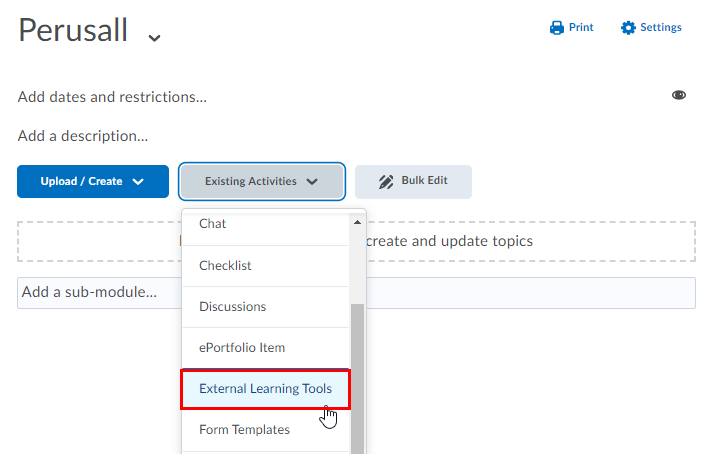
- Select the Existing Activities dropdown, then choose External Learning Tools
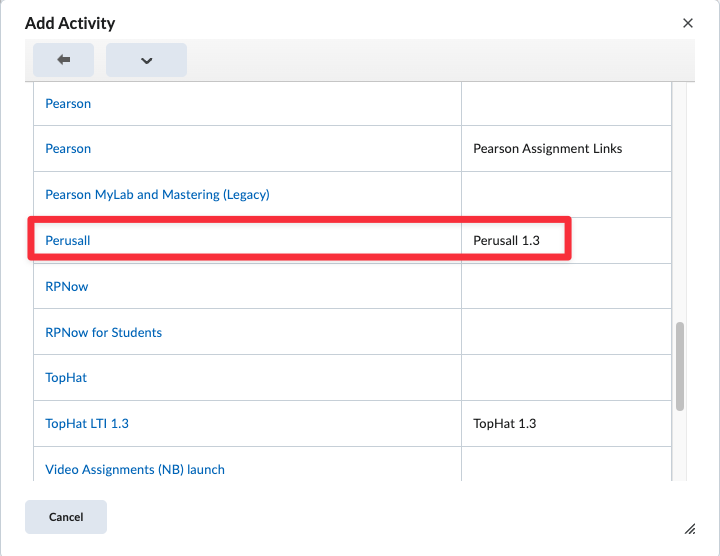
- Scroll down the list and choose Perusall.
- Open your Perusall link and a class will automatically be generated for you on Perusall’s platform
Step 2: Adding a Perusall Link to your Course Navbar
- Open your course and navigate to Course Admin -> Navigation & Themes
- Select the navbar currently listed as “Active.” If the link for this navbar is not blue, please refer to our guide on editing your navbar
- Under Links, select the Add Links button
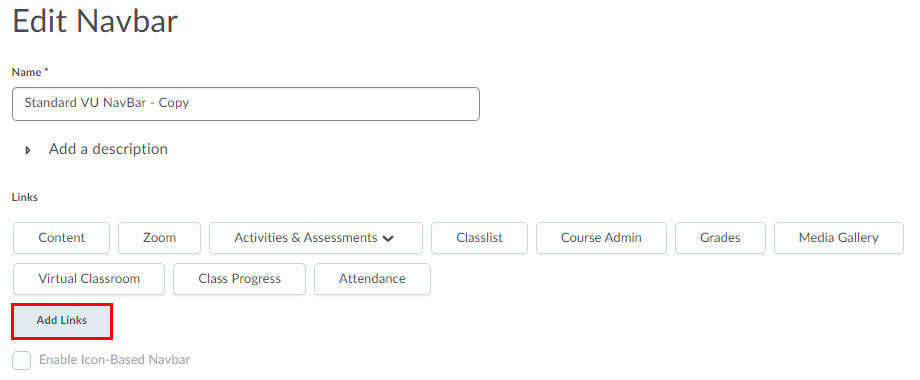
- Select Create Custom Link at the top of the window
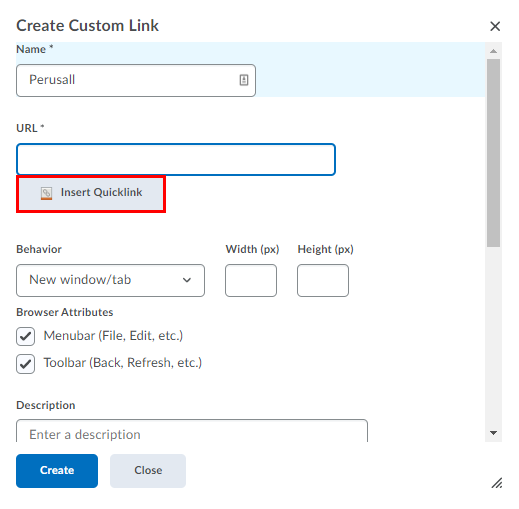
- In the Name box, enter Perusall
- Under URL, select the Insert Quicklink button
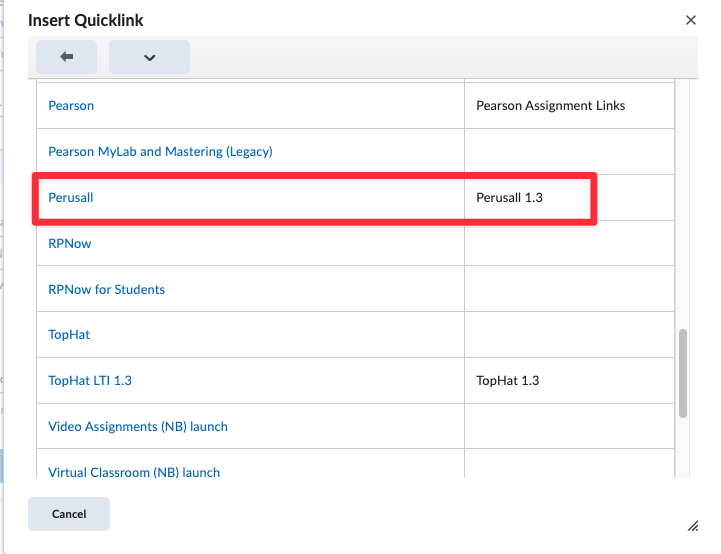
- Select External Learning Tools from the list
- Scroll down the list and choose Perusall.
- Click Create. You’ll receive a notification on your screen that your link has been created successfully
- Select Add to add the link you’ve created to your navbar
- Move your Perusall link where you’d like it to be among your other navbar items, then select Save and Close