
Product Spotlight – Respondus LockDown Browser
If you teach courses that utilize Brightspace Quizzes, you probably have thought about the best way to create a smooth, equitable, and fair testing environment for students. The Respondus LockDown Browser can help ensure that students are focused on their quiz or exam without unnecessary distractions or unapproved extra resources. The LockDown Browser is a downloadable software application that students install on their computer, iPad, or Chromebook that “locks down” their device for the duration of their testing time. This makes sure that students are focused on their assessment and are not distracted by other things on their device.
It’s important to break down what the LockDown Browser is and is not. It is a custom browser that students install and launch from Brightspace when they take a quiz or exam. When students use the LockDown Browser to take a Brightspace quiz or exam, this software prevents them from accessing any other websites, apps or programs, clipboard functions, printing, or screen recording or screenshot programs on their device. It works with Windows and Mac computers, iPads, and Chromebooks. It does not require the use of a webcam, as it does not monitor students through video. It also does not monitor what students do outside of their assessment time. Students launch the LockDown Browser from the Start Quiz page in Brightspace, and when they complete the quiz or exam, the program closes, and they return to Brightspace. The LockDown Browser is also flexible enough to let instructors allow limited access to tools like a calculator or specific webpages, if they choose. As you can see below, students using the LockDown Browser still see the same quiz design and layout as they would within Brightspace directly.
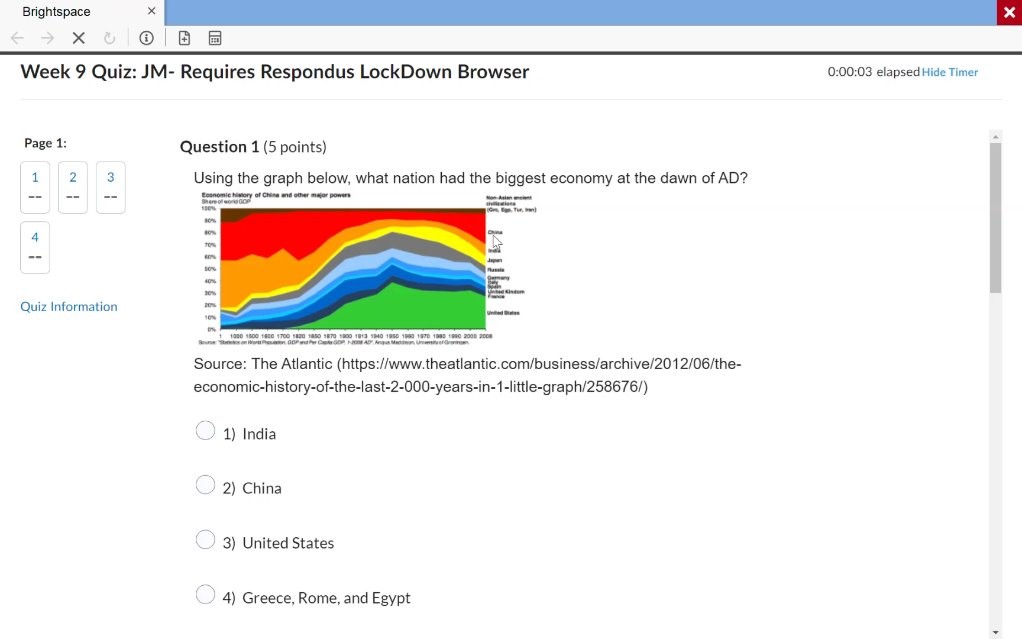
Figure: The student view of a Brightspace quiz in the Respondus LockDown Browser.
In a time when there are countless distractions for students, using a tool like the Respondus LockDown Browser helps students focus on the task at hand and helps instructors accurately measure student assessment. If you are an instructor who wants to learn how to enable the LockDown Browser for a quiz in your course, please refer to our online instructor guide for more information. If you are a student who is required to use the LockDown Browser on a quiz or exam, you can refer to our student guide on how to install this tool. If you have any other questions about the Respondus LockDown Browser, or anything else related to Brightspace, feel free to contact our Brightspace Support Team today.
Leave a Response