
Student Quiz Guide: How to Install Respondus Lockdown Browser
Many instructors at Vanderbilt may choose to use Respondus Lockdown Browser during online quizzes and exams. When Respondus launches, your quiz will be in a new browser that locks down your computer. While you are taking the quiz, you will be unable to use anything else on the computer. However, your instructor does have the ability to allow specific websites or a calculator if needed.
If you know that your instructor will be using Respondus, it is a good idea to download it onto your device ahead of time. This will save you time on test day.
Curious about how Respondus handles your data? Click here to review their Data Privacy Policy.
Updated Fall 2025
How to Download and Install Respondus LockDown Browser
- In Brightspace, locate the quiz that will be using Respondus Lockdown Browser. A quiz that is using Respondus will state that in the quiz link, as shown below.
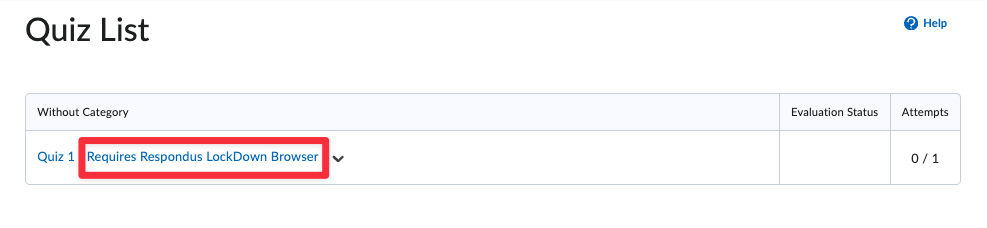
- Even if this quiz hasn’t started, you can still click on it to access the Summary page. On the bottom of the Summary page, you’ll see an option to Download and install the latest version of LockDown Browser.

- Click on the link to download the software. This process will vary depending on the type of operating system you are using.
- Once the LockDown Browser is successfully downloaded, you will be able to take the quiz.
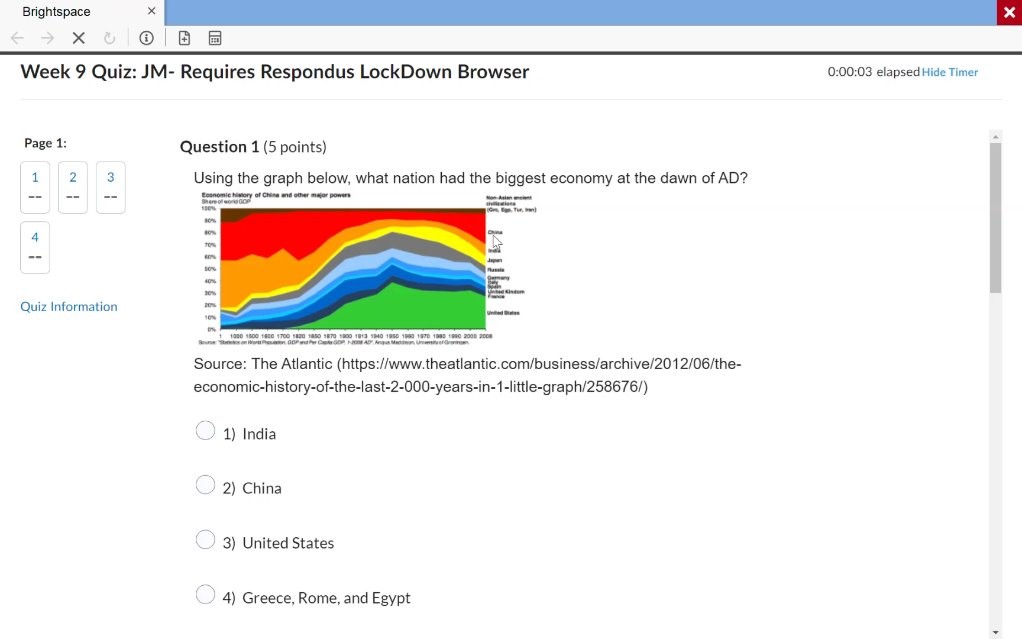
Figure: The student view of a Brightspace quiz in the Respondus LockDown Browser.
Note: If you are coming to Vanderbilt from another school that also used Respondus, you should uninstall any version of Respondus, restart your device, then install the newest version linked in Brightspace. Respondus versions do vary from school to school, so you should ensure you are using the most recent version available from Vanderbilt’s Brightspace platform.
If you run into issues with the LockDown Browser, you can contact Respondus Support for more assistance.