Setting Up Nearpod in your Course
Nearpod is an interactive learning tool which is currently integrated with our Brightspace environment. This integration allows students to interact with Nearpod lessons without leaving the Brightspace platform.
Note: There may be associated costs to use Nearpod in your course. Learn more at Nearpod’s website.
- Step 1: Set up an account on Nearpod.com
- Step 2: Create a lesson
- Step 3: Link a Nearpod lesson to your Content Page
Step One: Set up a Nearpod Account
Start at Nearpod’s website.
Set up an account on Nearpod using your vanderbilt.edu email address. It will ask you a series of questions before you land on the Nearpod dashboard:

Step Two: Create a Lesson
On the main dashboard, click “Create Lesson”. Now you can upload slides, create content, and add activities. We suggest visiting Nearpod’s YouTube Channel to learn more about creating lessons.
Step Three: Link a Nearpod lesson to your Content Page
- Navigate to Nearpod’s website and login to your account
- Find the Lesson you’d like to add to your Brightspace course, hover over it, and select Student-Paced

- In the box that appears, select Copy Link

- Navigate to the Content page in your Brightspace course
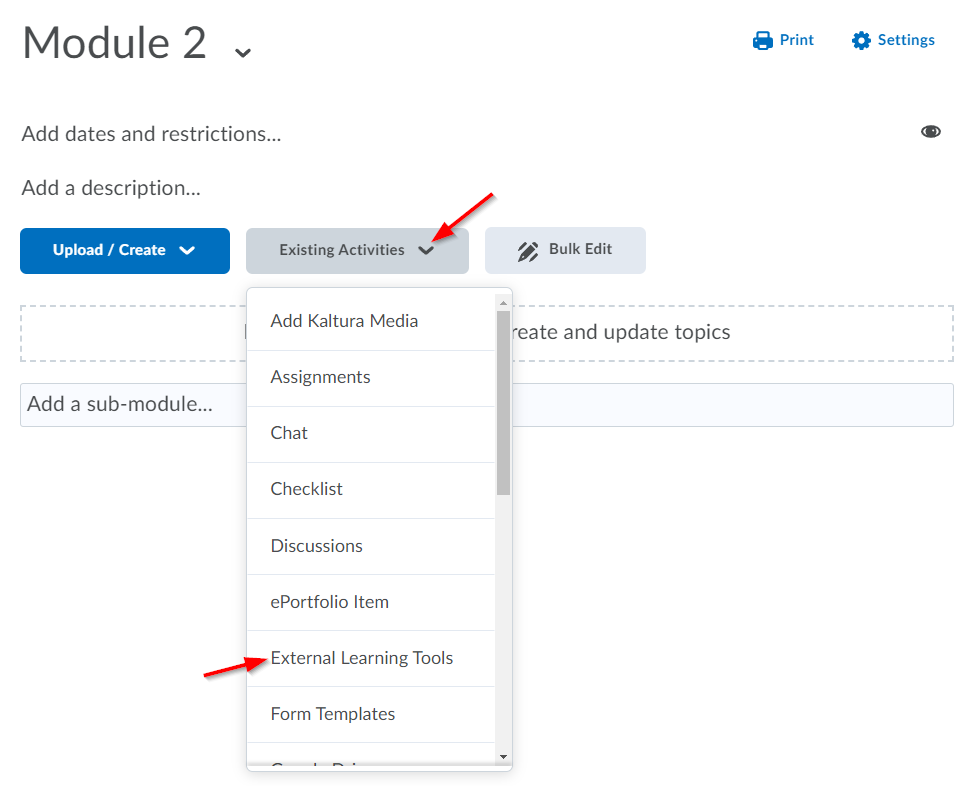
- Open the module you’d like to add this Nearpod link to, then choose Existing Activities > External Learning Tools
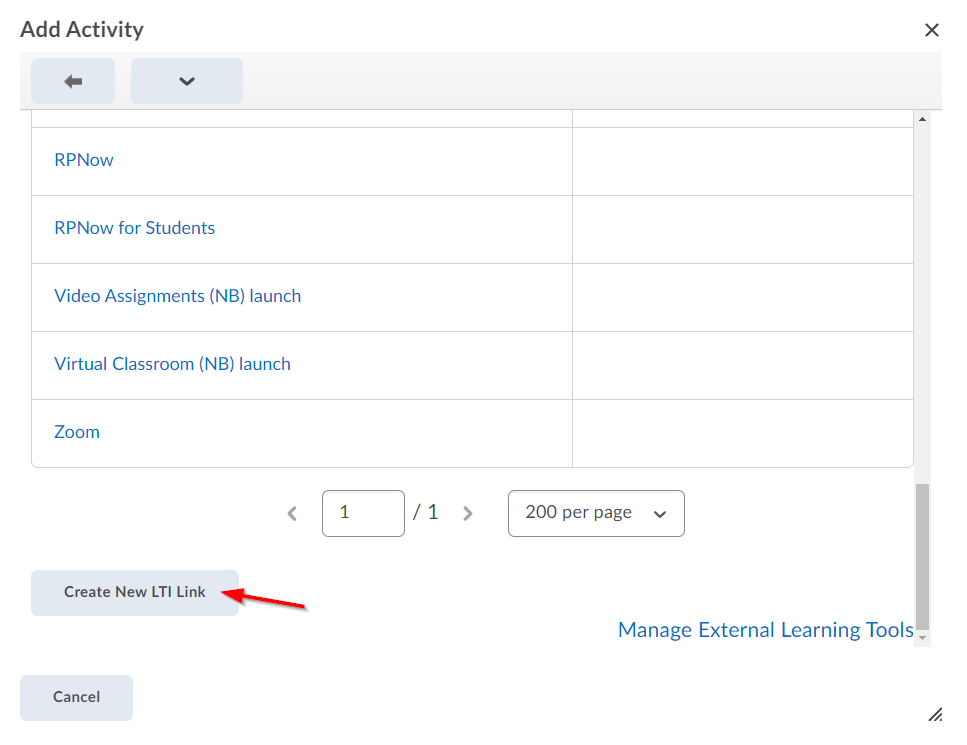
- Scroll to the bottom of the Add Activities box and select Create New LTI Link
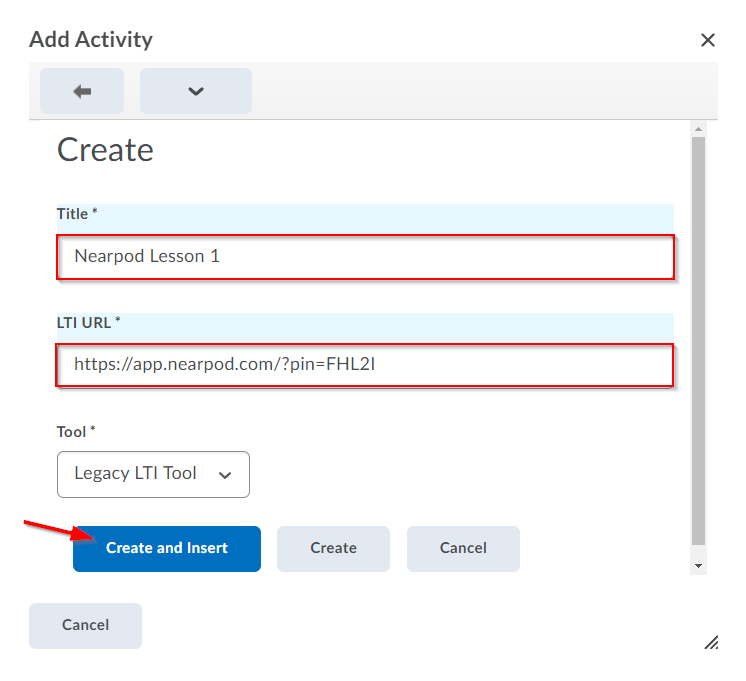
- In the Title box, enter a title of your choosing. This is what students will see when they look for this Lesson on the Content page. In the Link box, paste the link you copied from Nearpod’s website in step 3. Finally, select Create and Insert.