
Setting up the Respondus LockDown Browser for a Quiz
Brightspace offers a tool called the Respondus LockDown Browser, that will open up a new browser application for students during a quiz. This is called a “LockDown” browser, because it will essentially lock down their computer until the quiz is finished. Students will be unable to visit websites, use a calculator, open files or other programs, send or receive any messages, or virtually anything else while they are taking the quiz. However, it is possible to manually allow students to use a calculator or view a website during the quiz if you wish. This tool is available to students on Mac and Windows computers, iPads, and Chromebooks.
Please note that the first time your students use Respondus, they will need to download the tool. You should allow time for this, especially if it is the first quiz of a semester and/or you are working with students new to Brightspace. As a best practice, we do recommend having students take a practice quiz at the beginning of each term to get familiar with the software in a low stakes environment. This helps workout any issues and make sure that everything is ready to go for a real quiz or exam.
Curious about how Respondus handles your student data? Click here to review their Data Privacy Policy.
Updated Fall 2025
Set up the Respondus LockDown Browser
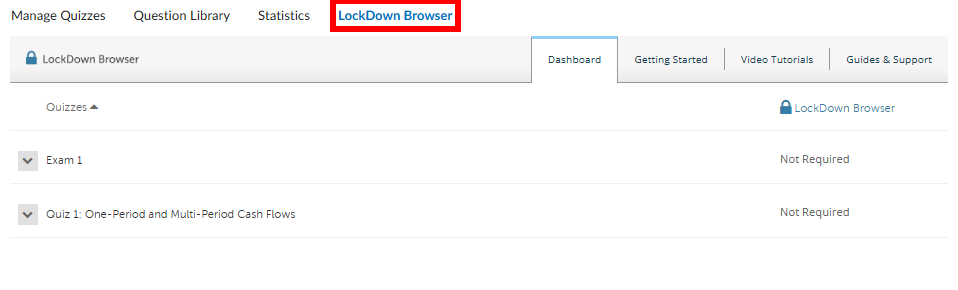
- Once you have created a quiz, go to the Quizzes page in your course. Click on the LockDown Browser tab. In this view you will see your quizzes listed, and whether you have activated LockDown Browser (to the right).
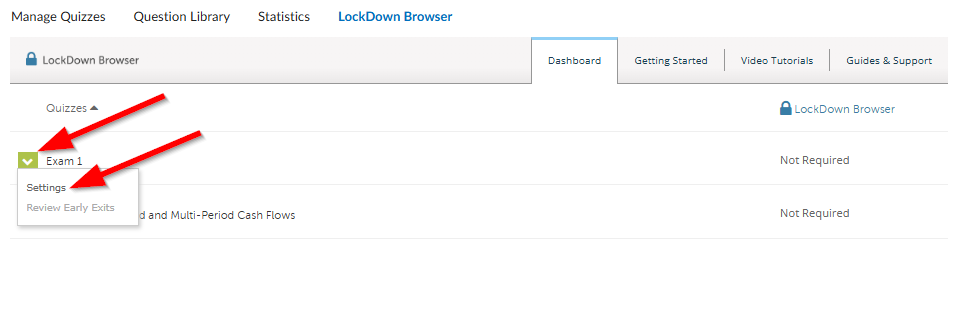
- Click on the menu icon to the left of the desired quiz and select Settings.
- Select Require LockDown Browser for this exam. Once you have made this selection you will be given options to change Password Settings and Advanced Settings.
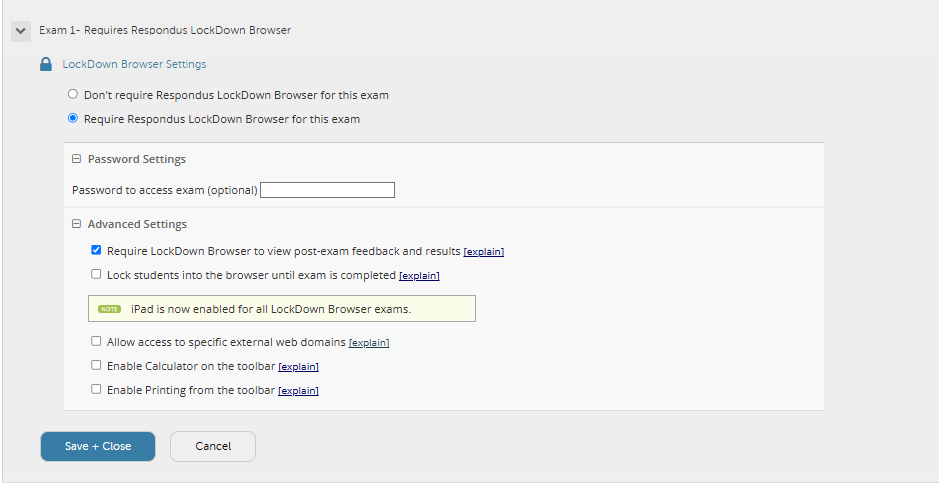
- For the Advanced Settings, you will have several options which include:
- Require LockDown Browser to view post-exam feedback and results: This setting requires students to review their quiz results within Lockdown Browser after the exam has been completed. To customize what students can and cannot see in their post-exam results, check out our guide on Quiz Results Displays.
- Lock students into the browser until exam is completed: This setting prevents students from closing the Lockdown Browser window until they’ve completed their quiz submission. This setting should not be used unless your quiz is being offered in an in-person classroom setting.
- Allow access to specific external web domains: This setting allows students to open specific websites or sets of websites during their Lockdown Browser quiz. Please note that, for students to gain access to these websites, you must include a direct link to each site in the quiz itself.
- Enable Calculator on the toolbar: This setting enables a calculator for students to use during their quiz period. Either a Standard Calculator or a Scientific Calculator can be selected.
- Enable Printing from the toolbar: This setting enables a print option in the Lockdown Browser. This is unlikely to be necessary for most quizzing circumstances.
- For the Advanced Settings, you will have several options which include:
- Make your selections and click Save + Close.
If you want to see how students install the LockDown Browser, and what it looks like when taking a quiz, please refer to our student guide on installing the LockDown Browser.