
Releasing Final Grades to Students in Brightspace
To keep a running total of the student’s grade, configure the grade book to release the calculated final grade for all students. At the end of the course, you can retract the calculated final grade and instead release the adjusted final grade.
Note: Final Grades in Brightspace do not transfer into YES. You will also need to submit your final grades to YES.
Confirming Grade Book Settings
Release Final Grades
Confirming Grade Book Settings
Before you release your final grades of the year, it’s important to review how you have your Grade Book setup. If needed, you can also review our guide on how to set up your Grade Book.
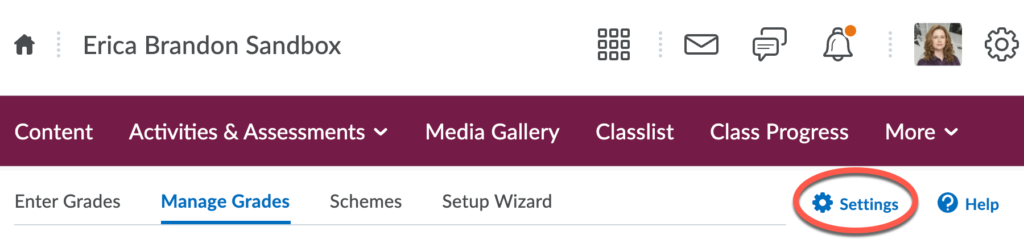
- Once in your course, click on Course Admin, and then Grades. Click on Settings in the upper right-hand menu.
- Select the Calculation Options tab.
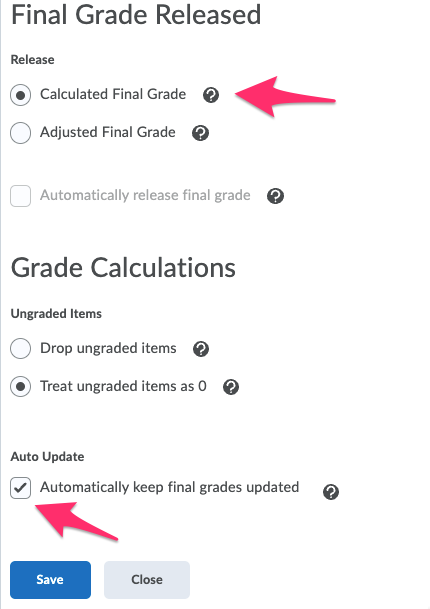
- Set Final Grade Released to either Calculated Final Grade or Adjusted Final Grade, set Ungraded Items to either Drop ungraded items or Treat ungraded items as 0, and choose Automatically keep final grades updated.
- Click Save
- Click Close
-
Release Final Grades
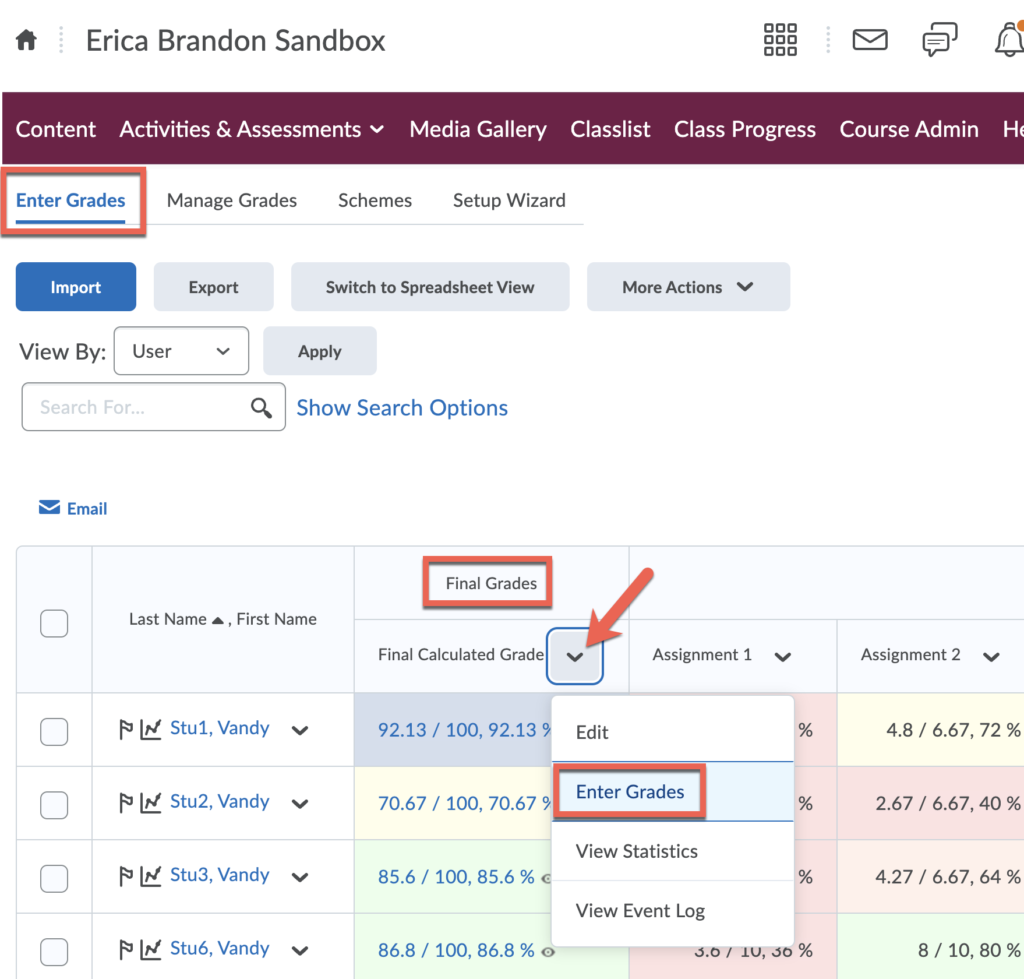
- Return to Grades, and click the Enter Grades tab.
- Identify which Final Grade column has the unreleased symbol

- Select Enter Grades from the unreleased Final Grade context menu.
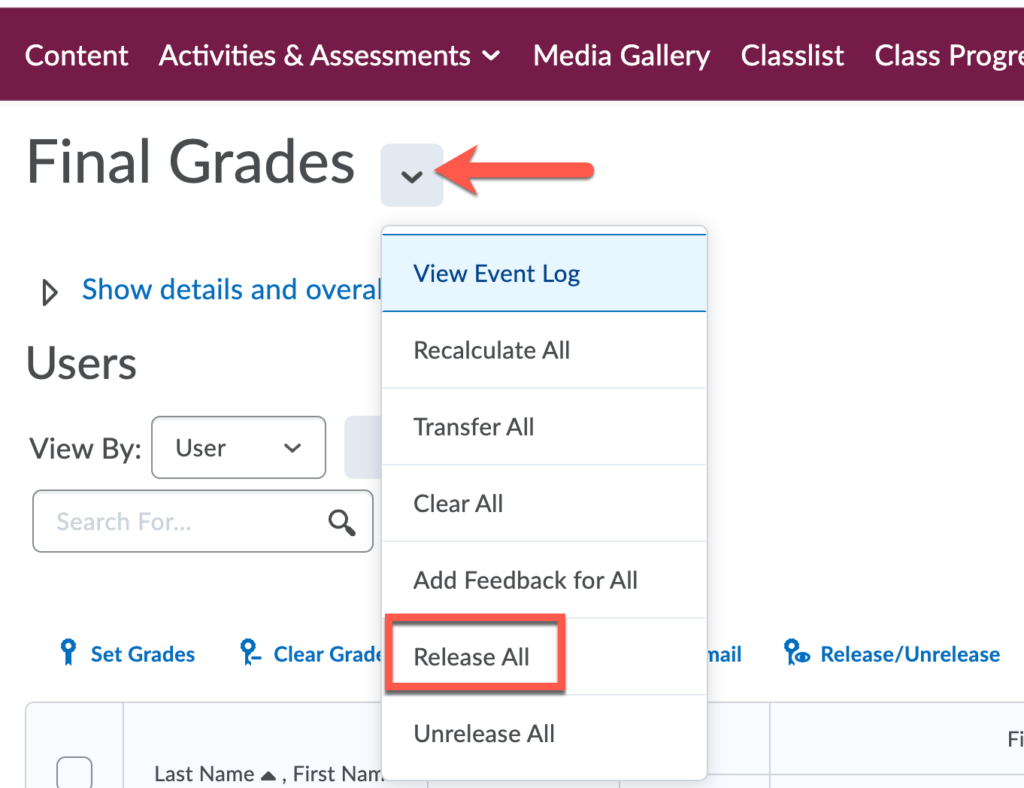
- On the Final Grades page, select Release All from the Final Grades context menu.
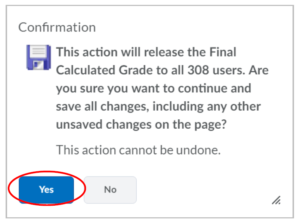
- Select Yes on the last pop-up window, and your changes will be saved.
Remember that Final Grades in Brightspace do not transfer into YES. You will also need to submit your final grades to YES.