
Building Practice Questions with Lumi and Creator+
Creator+ empowers Instructors to create formative and interactive learning activities to let learners test their comprehension and get immediate feedback on their understanding of a topic outside of a formal assessment. By using D2L Lumi as part of this process, Instructors can leverage generative AI to help build practice questions based on existing course content. This guide applies to Instructors, Designers, TAs, and any other users that have the ability to create and edit pages in the Content section of a Brightspace course.
If you’re new to Creator+, you can read more about the toolset from our Creator+ launch in 2024.
Important note: Lumi is a generative AI product. As such, users should always review output for accuracy before inserting it into a course. D2L has built Lumi so that it only references information from content in your course or that you provide it, so it will not access the internet or any prior training data to generate content. Having said that, Instructors and other course builders are responsible for any information added to a course, so always review output from Lumi before adding it to a course.
Using D2L Lumi to Generate Practice Questions
- Go to the Content area of your course
- Create/Edit a page
- Click the Creator+ Authoring Tools icon

- Click Insert Practice
- Select the type of Practice Question to insert
- Note that only options with the
 icon can be generated using Lumi AI

- Currently, Dropdown Fill in the Blanks, Fill in the Blanks, Multi-Select, Multiple Choice, and True or False question types are available for Lumi generation.
- Note that only options with the
- Click Generate Question in the Lumi banner

- Add or edit text in the Source Text area
- If there is any text on the Content page you started with, it will automatically be shown here.
- You can also add new text as well as edit existing text on this page.
- Click the blue Generate Question button at the bottom of the screen

- Review the generated question text, answer options, and answers for accuracy and usefulness
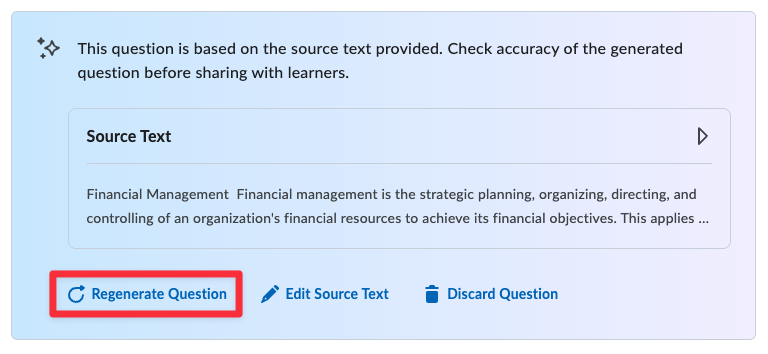
- If needed, you can click Regenerate Question to produce a new question.
- If needed, you can click Regenerate Question to produce a new question.
- Click Insert to add this Practice question to your Content page
- Once complete, click the X in the top right to close the Practice Question window
- Click Save and Close to save your edits to your Content page