How do I register for a course through Brightspace Discover?
There are a few select courses in Brightspace that allow users to sign up on their own via a self-registration process. These courses include offerings developed by AdvancED as well as other approved courses from various parts of the university.
- How to enroll in a course with Brightspace Discover
- How to find a course in Brightspace Discover you’re already enrolled in
- How to unenroll from a course in Brightspace Discover
How to enroll in a course with Brightspace Discover
- Navigate to the Brightspace homepage
- In the navigation bar along the top of the page, click Discover

- Find the course you’d like to register for in the list and click on the course title
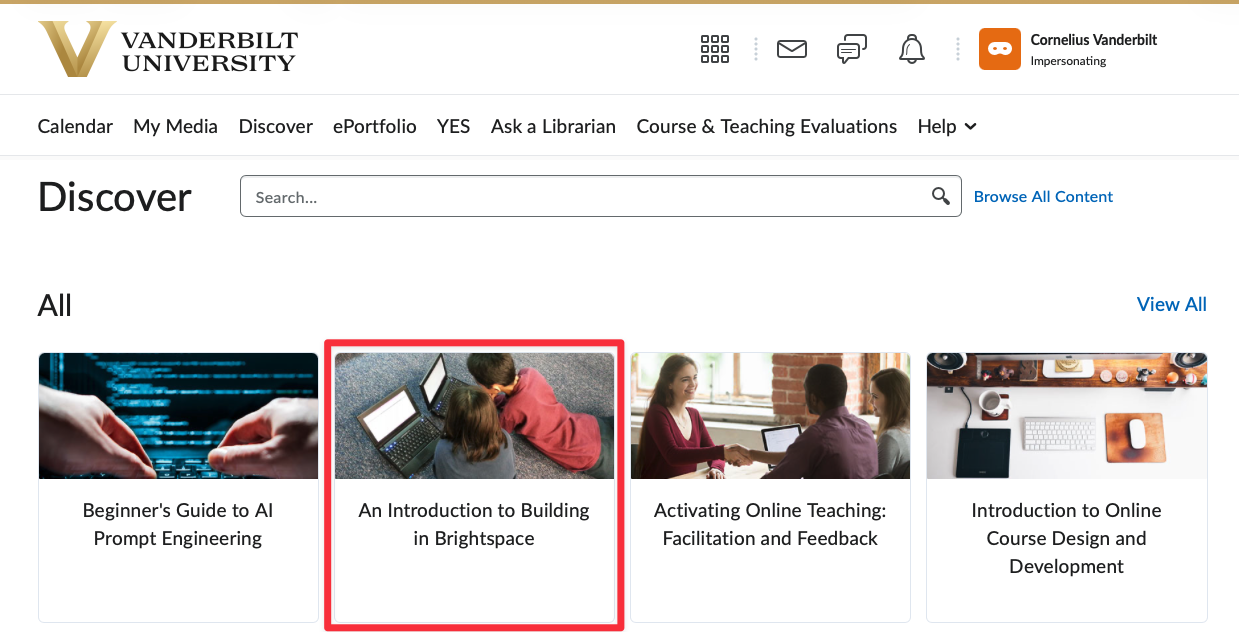
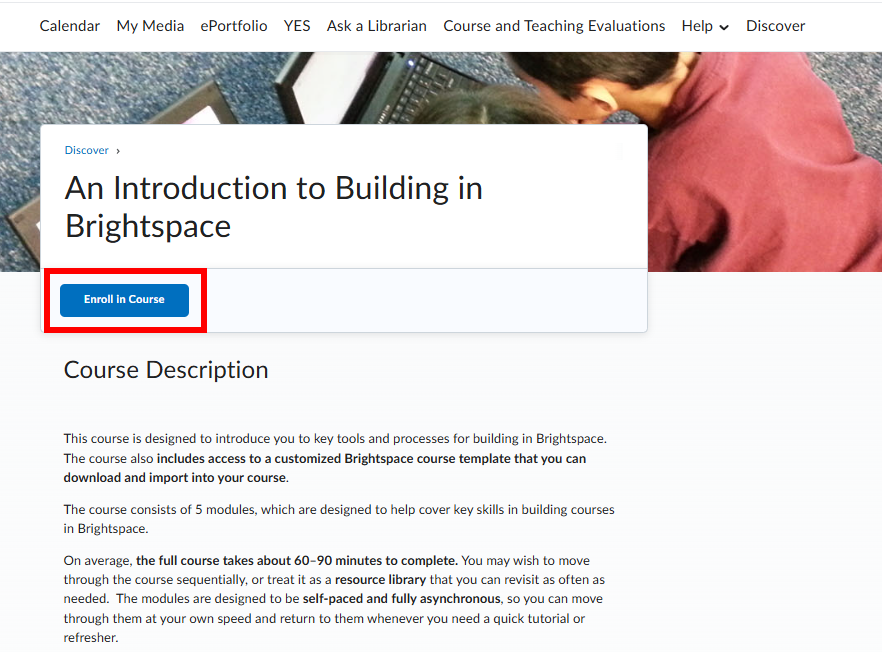
- Select the Enroll in Course button to register for this course
- You should see a popup that shows you as Successfully Enrolled
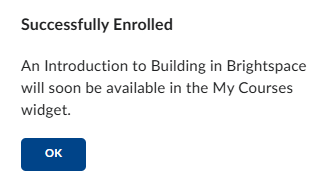
Once you’ve completed these steps, you’ll have access to this course via the Self-Registration Courses tab of the Brightspace homepage.
How to find a course in Brightspace Discover you’re already enrolled in
While you can access Discover courses under the Self-Registration Courses tab of your Brightspace homepage, there may be times you need to find this course within the Discover tool. To do this, follow the steps listed below.
- Navigate to the Brightspace homepage
- In the navigation bar along the top of the page, click Discover
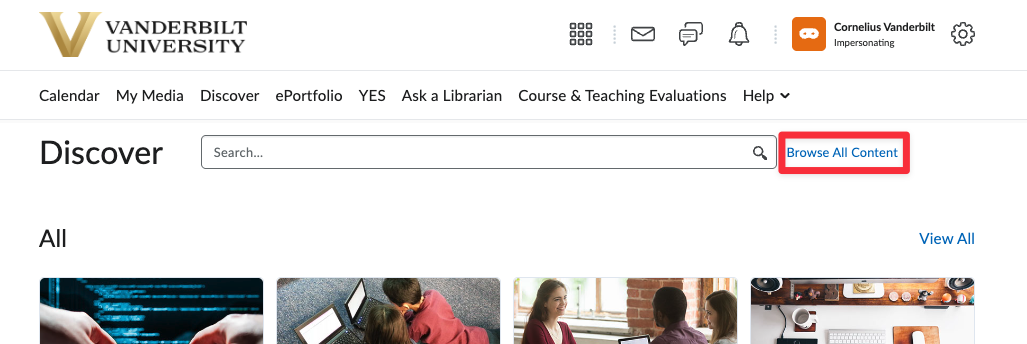
- Click Browse All Content by the search box
- Click the Sort menu and select Already Enrolled
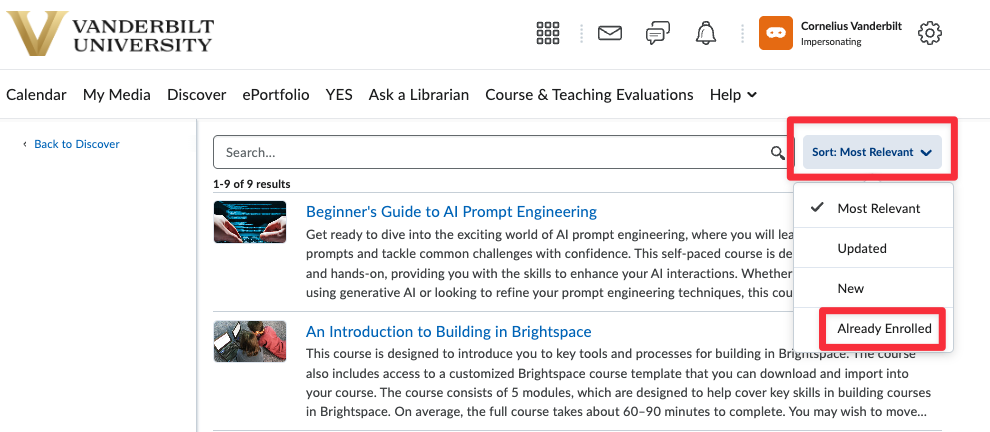
- View the Discover courses that you are already enrolled in

How to unenroll from a course in Brightspace Discover
- Once you’ve navigated to the Discover course you are enrolled in, click the Enrollment Options icon (…) beside Open Course
- Click Unenroll
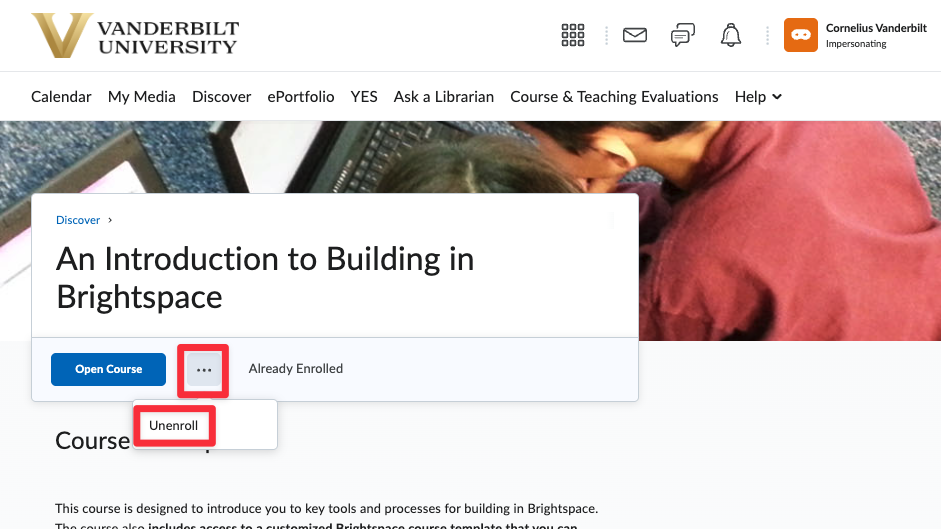
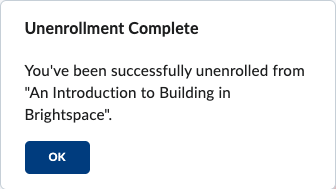
- You should see a popup that shows Unenrollment Complete