Instructional Accessibility
Students
Faculty
Document accessibility is the cornerstone of classroom access. Word docs and PDFs are the vector of so many expectations, instructions, and assignments. Here are a few practical tips that will help students using assistive technologies access the information that you want to share.









Word's Built-in Accessibility Checker
For Word docs, you can run the built-in accessibility checker for help in finding accessibility issues. Please Note: The accessibility checker only checks .docx files
-
Office for Windows
- Go to the File tab.
- Select Info from the sidebar menu.
- Click on the Check for Issues button.

- Select Check Accessibility from the drop-down list.
The Accessibility Checker panel will open to the right of the document. The accessibility checker provides you with a list of errors, warnings and tips.
-
Office for Mac
- Go to the Tools menu
- Choose Check Accessibility

The Accessibility Checker panel will open to the right of the document. The accessibility checker provides you with a list of errors, warnings and tips.
Keep information perceivable
Alternative Text Tags
Descriptions of images (alt text) allow screen reader users to benefit from the information being conveyed by an image.
What information should you include or exclude from alternative text descriptions? See the DIAGRAM Center's alt text resource .
In Microsoft Word:
- Right click on the image and choose Edit Alt Text.
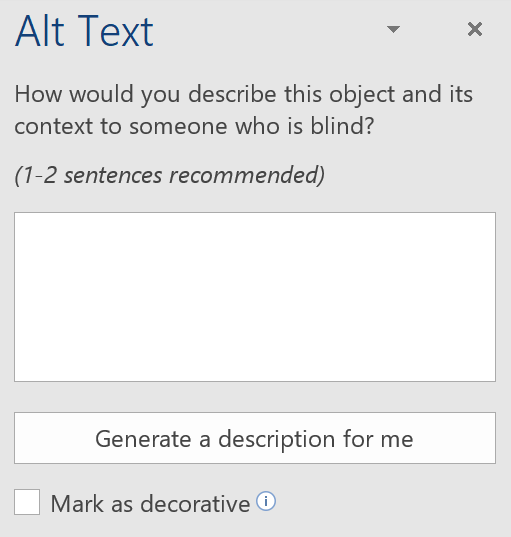
- Type your alt text into the edit field.
- There is no Save button. You can either close the side bar or click on a different picture.
See Complex Image Accessibility for images that cannot be adequately described in alternative text (which should be limited to one or two brief sentences).
-
Lists
If order is important in your list, make it a numbered list. If order is not important, a bulleted list is a better choice.
In Microsoft Word:
- Select the text that you want to make into a list.
- On the Home tab, in the Paragraph group, select the Number (ordered list) or Bullets (unordered list) icon.
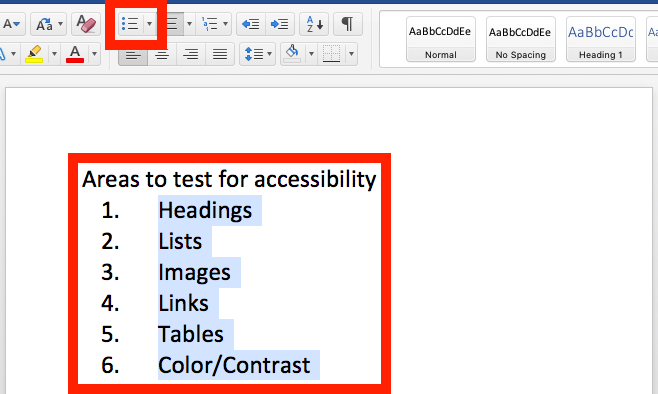
The numbered (ordered) list in the picture above is highlighted to show that it would be better as a bulleted (unordered) list because the order of the items is unimportant.
-
Tables
Designating column and row headers in a table is essential. You can also add alternative text descriptions to tables to give an overview of the information in the table.
In Microsoft Word:
- Put your cursor in the first cell of your data table.

- Go to the Insert tab and choose the Link dropdown. Choose Bookmark.

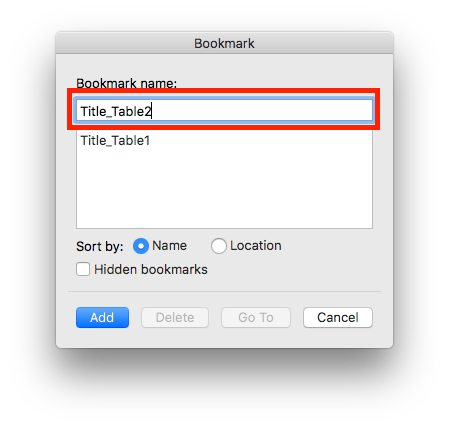
- Type in a unique name for each table bookmark. For the two tables in my example, I have used Title_Table1 and Title_Table2.
- Choose the Table Design tab and make sure the Header Row check box is checked.

- Next, click on the Table Layout tab.
- Click on Repeat Header Row button (I know this isn't intuitive, but it's very important to designate the top row as table headers.)

- Right click on the table and select Table Properties. Describe the contents of the table by selecting the Alt Text tab. In the table properties window, give the table a title and provide a summary of the table's contents.

Please note:
- Bookmarks in the first cell of tables, as shown in this YouTube Table Bookmarking video, will help screen reading software repeat the header row values for each cell below it (super useful in not getting lost in table data!). The video also mentions some things you should not do when creating a table in a Word document.
- Microsoft Word now allows the top row and first columns to be marked as table headers! Unfortunately, the first column headers do not export to PDF. However, if you save the Word doc as HTML, the top row and first column headers DO export correctly!
- Put your cursor in the first cell of your data table.
-
Heading Structure
(WCAG 1.3.1 and 1.3.2)Back to 🔝
It isn't enough to make text big and bold to look like headings. Section titles need to be formatted as headings.
In Microsoft Word:
- Place your cursor on the line that you want to become a heading.
- Go to the Home tab.
- In the Styles group, choose the appropriate heading level (see the next section on how to use headings in the proper order).
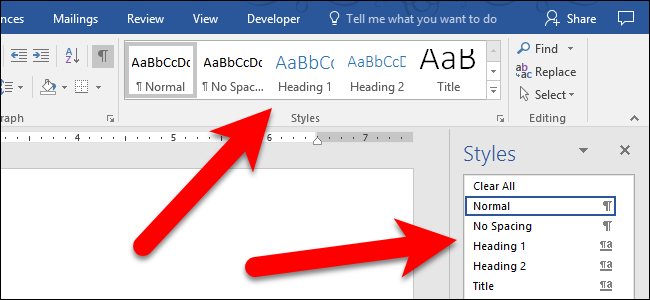 Picture from How To Geek
-
Heading Order
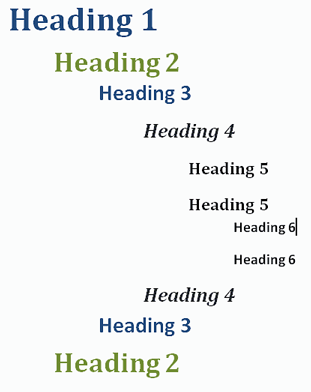
In addition to formatting headings as headings, the headings need to be used in the correct order. Headings chunk your content, making it easier for everyone to read. Headings are also a major way of navigating with a screen reader.
Headings must be used in the correct order for them to be useful.
- Heading 1 is like the title of a book and there is just one Heading 1 per page. Heading 2s are like chapter titles. Heading 3s are sub-sections of those chapters, and so on.
- Heading order is similar to the order of an outline.
- DO NOT skip heading levels. Eg. Heading 1 straight to Heading 4 could confuse screen reader users. Instead, only step down one level at a time.
- See below for a visual display of correct heading structure.
Make interfaces operable
Descriptive Links
Links are important to everyone. If the links are embedded into meaningful text, they are much more useful.
In Microsoft Word:
- Type out text that describes the destination of the link.
- Select the text, right click and choose Hyperlink... from the menu.
- The Insert Hyperlink window will open.
- Type or paste the URL of the webpage in the Address field.
- Then click the OK button to save the link.
Create understandable pages
Document Language
Documents are read aloud by assistive software in whatever language the author marks. This means that language synthesizers can switch languages while reading, but only if the document author marks languages appropriately.
In Microsoft Word:
- Highlight a part of the document that is a language other than English
- Go to the Review tab of the ribbon
- Choose the Languages dropdown
- Choose "Set Proofing Language" if you're using Word in Windows
- Uncheck "Detect Language Automatically" checkbox
- Choose the correct language for that section of the document
- Repeat for any other sections of the document that are in a language other than English

Information for this page was adapted from PCC's website and is based on the Creative Commons license.
Recent News
-

Vanderbilt Poll: Post-election, core concerns and views of Tennesseans persist
-
Vanderbilt secures four prestigious NEH grants
-

Vanderbilt’s Keivan Stassun named 2024 MacArthur fellow
-

Quest to develop fully autonomous surgical robot attracts award up to $12 million from ARPA-H
-

Vanderbilt University launches Institute of National Security to counter threats, cultivate leaders