Instructional Accessibility
Students
Faculty
Presentation accessibility starts with considering how much access your audience will have to your materials. If you're creating a video or audio recording, you can refer to our page on Audio & Video accessibility. If presenting in-person, and the audience will not have access to your slides or documents, you'll just want to use a microphone to ensure that your audience can hear you, and you can also be as descriptive as possible of any visual material in your presentation for participants that may have a vision impairment.
Requests for sign language interpreting or live captioning are usually handled by the department that's hosting the event, but our office can serve as a liaison to help find the right provider. When you plan to give out slide decks (PowerPoint files) before, during or after a presentation, you'll want to follow the advice below to create generally accessible PowerPoint files.









PowerPoint's Built-in Accessibility Checker
For existing PowerPoint files or any point in the creation process, you can run the built-in accessibility checker for help in finding accessibility issues. Please Note: The accessibility checker only checks .pptx files
-
Office for Windows
- Go to the File tab.
- Select Info from the sidebar menu.
- Click on the Check for Issues button.
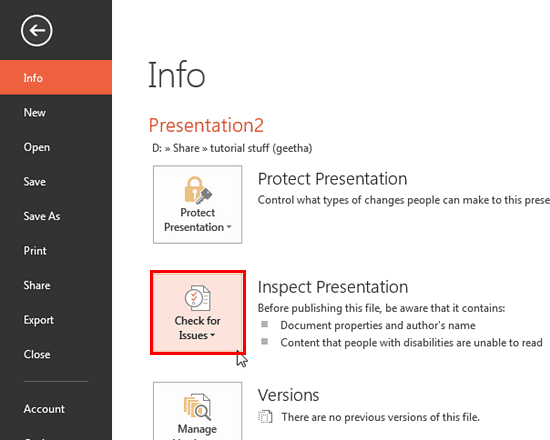
- Select Check Accessibility from the drop-down list.
The Accessibility Checker panel will open to the right of the document. The accessibility checker provides you with a list of errors, warnings and tips.
-
Office for Mac
- Go to the Tools menu
- Choose Check Accessibility
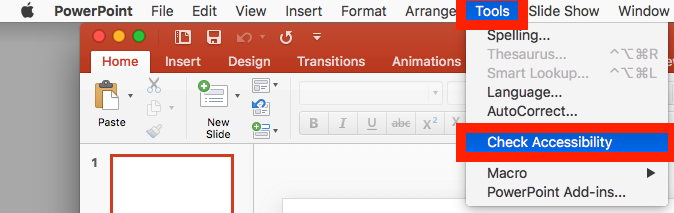
The Accessibility Checker panel will open to the right of the document. The accessibility checker provides you with a list of errors, warnings and tips.
Consistency
Pre-built Layouts
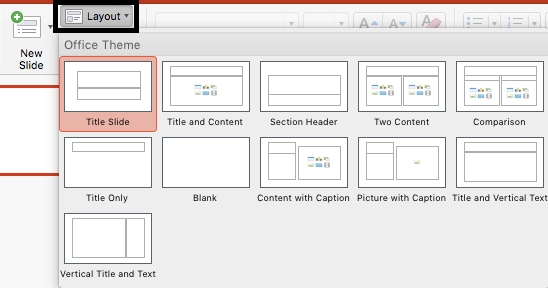
Use the slide layouts (not the blank one though) provided on the Home tab. This will help to ensure your slide's reading order remains intact.
- The order that text and objects are inserted into the slide will be the default reading order unless you manually change it.
- Don't use animations or slide transitions on the PowerPoint presentation that you post online.
Keep information perceivable
-
Alternative Text Tags
Alternative text descriptions of images (ALT text) allows screen reader users to benefit from the information being conveyed by an image.
What information should you include or exclude from alternative text descriptions? See the DIAGRAM Center's alt text resource.
In PowerPoint
- Right-click on the image and select Edit Alt Text.

- Appropriate alt text is a succinct description of pertinent information about the image. The description should be able to stand on its own to tell the reader why the image was included.
- There is no Save button. You can either close the side bar or click on a different picture to add its alt text.
See Complex Image Accessibility for images that cannot be adequately described in alternative text (which should be limited to one or two brief sentences).
- Right-click on the image and select Edit Alt Text.
-
Lists
Page formatting (lists, headings and links) is read aloud to screen reader users so that the content can be understood in context. If order is important in your list, make it a numbered list. If order is not important, a bulleted list is a better choice.
In PowerPoint:
- Select the text that you want to make into a list.
- On the Home tab, in the Paragraph group, select the Number (ordered list) or Bullets (unordered list) icon.

- The bulleted (unordered) list in the picture above is highlighted to show that it would be better as a numbered (ordered) list, due to the step-by-step nature of the list.
-
Tables
Designating column and row headers in a table is essential. You can also add alternative text descriptions to tables to give an overview of the information in the table.
In PowerPoint:
- Place cursor anywhere in the table.
- Two Table Tools tabs will appear in the Ribbon.
- Click on the Design tab.
- Check the Header Row checkbox. Also check First Column if your table has row headers.

Ensure a proper reading order in tables
Screen readers read tables from left to right, top to bottom, one cell at a time (no repeats). If cells are split or merged, the reading order can be thrown off.
Read your table left to right, top to bottom (never repeating a cell). Does it make sense? A screen reader reads tables in this way.
Merged, nested, and split cells change the reading order of tables. Make sure you construct your table in a way that accommodates good reading order.
-
Machine-readable Text
Text inside JPEGs, PNGs, etc. is also not readable by assistive technology. See Alternative Text Tags
- Outline View is a great way to visually check whether all of your text is available to screen reading software.

- Make sure all of the slide text content appears in the outline view. Students with visual disabilities may prefer not to bother with the more visual slide view.
- Recommended best practice: Compose your outline in the outline view, and then move to the slide view to add images and design.
- Outline View is a great way to visually check whether all of your text is available to screen reading software.
Make interfaces operable
Descriptive Links
Links are important to everyone. If the links are embedded into meaningful text, they are much more useful.
- Type out text that describes the destination of the link.
- Select the text, right click and choose Hyperlink... from the menu.
- The Insert Hyperlink window will open.
- Type or paste the URL of the webpage in the Address field.
- Then click the OK button to save the link.
Create understandable pages
Document Language
Here are instructions for changing the language of your PowerPoint slides.

Information for this page was adapted from PCC's website and is based on the Creative Commons license.
Recent News
-

Vanderbilt Poll: Post-election, core concerns and views of Tennesseans persist
-
Vanderbilt secures four prestigious NEH grants
-

Vanderbilt’s Keivan Stassun named 2024 MacArthur fellow
-

Quest to develop fully autonomous surgical robot attracts award up to $12 million from ARPA-H
-

Vanderbilt University launches Institute of National Security to counter threats, cultivate leaders