-
Apple - Card is not in the Apple Wallet settings to check
Ensure your iOS is fully up-to-date. If not, please update it.
If the GET app does not load allowing you to choose a University nor even login, delete the app, and install it again.
If you receive a message noting the card cannot be provisioned at this time, please try again later, you may need to remove the card from your Apple Wallet (yes, it could have been added to your Apple Wallet, but there was a problem when it was added and did not properly link to you account). Or you may need to power off your phone and power it back on (this takes a few minutes).
Settings to Check
- If you are able to open the GET app, please ensure you see your picture.
- If you do not see a picture of yourself please upload one here. You will have to wait til we approve the uploaded picture during normal business hours.
- Once you see your picture in GET, please proceed with the next step.
- Open the Settings app on your phone
- Tap on your name at the top (Apple ID, iCloud, Media & Purchases)
- Tap Name, Phone Numbers, Email
- Ensure your birthday is accurate
- If you are too young according to the date of birth, you are not able to use the Apple Wallet which is where the card will be added.
- Ensure your birthday is accurate
- Tap Name, Phone Numbers, Email
- Tap General
- Ensure your software is up to date
- If you have a pending update, you need to do this first prior to attempting to add the card to your Apple Wallet
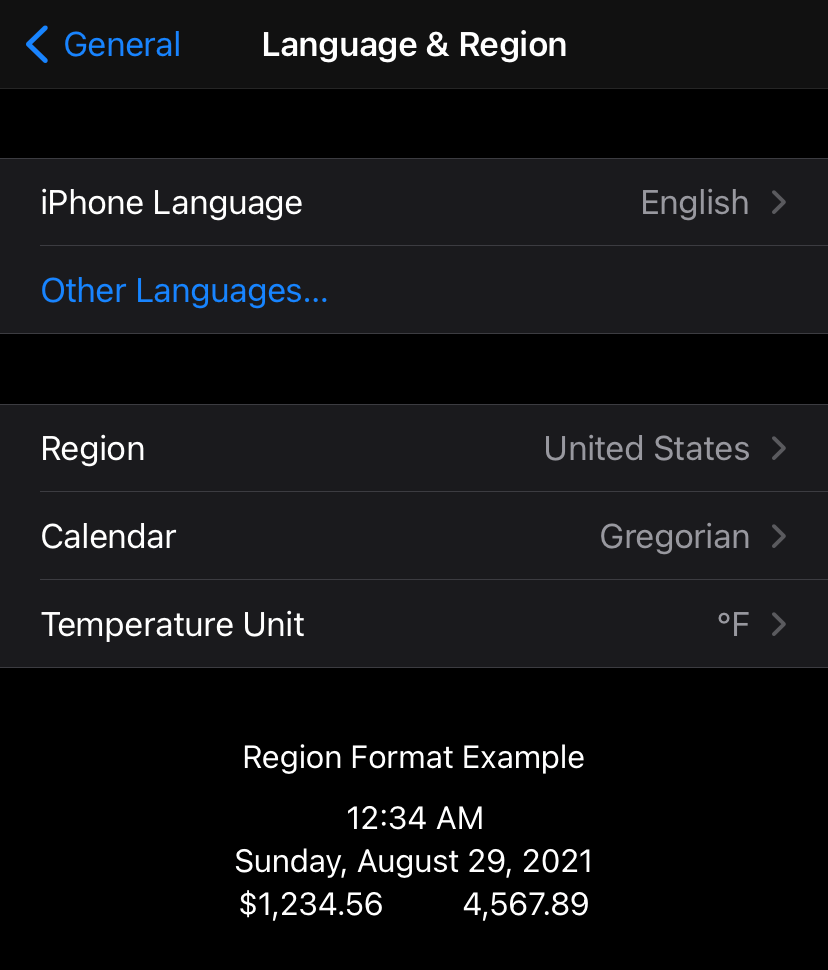
- Tap Language & Region
- Please remove any other languages you have setup on your phone (you may add them back after the card has been added to your Apple Wallet)
- Ensure the other settings match the picture below.
- iPhone Language: English
- Region: United States
- Calendar: Gregorian
- Temperature Unit: F
- Ensure your software is up to date
If these settings are set properly on your phone, please see the other troubleshooting tips we have documented below this one.
Did you change your Apple ID? If so, please contact our office at commodorecard@vanderbilt.edu.
- If you are able to open the GET app, please ensure you see your picture.
-
Apple or Android - Digital Card/GET - Region Settings Issue
iOS
- Change the language of your phone to English
- Change the Region to United States
Android
- Change the language of your phone to English
- The language can only be set to English.
- Remove other languages added to your phone.
- You can add the language back to your phone once the card is added to GET
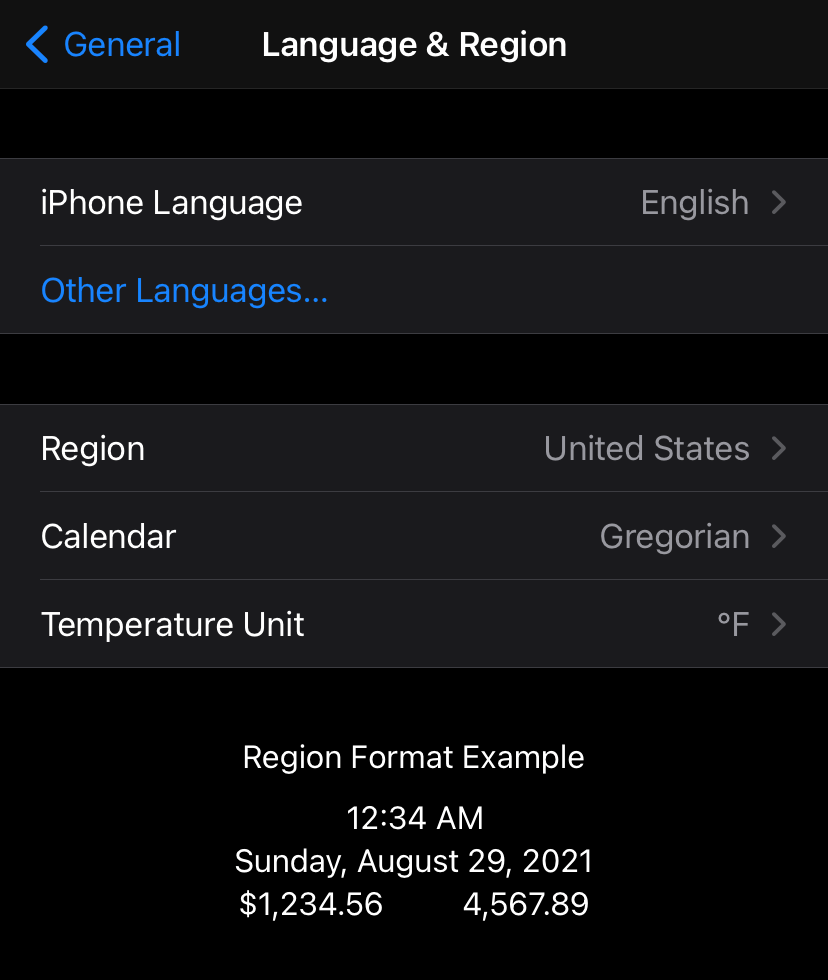
- Change the Region to United States
-
Android - Phone Troubleshooting Tips - Try these first
If these settings are set properly on your phone, please see the other troubleshooting tips we have documented below this one.
- If you are able to open the GET app, please ensure you see your picture.
- If you do not see a picture of yourself please upload one here. You will have to wait til we approve the uploaded picture during normal business hours.
- Once you see the picture of yourself in GET, please check the following as well.
- Ensure your phone has the NFC capability (not all Android phones do)
- Open Settings
- Scroll to the top of the page locating the Search option
- Search for NFC
- If no results appeared, please visit our office
- Ensure NFC is enabled/turned on
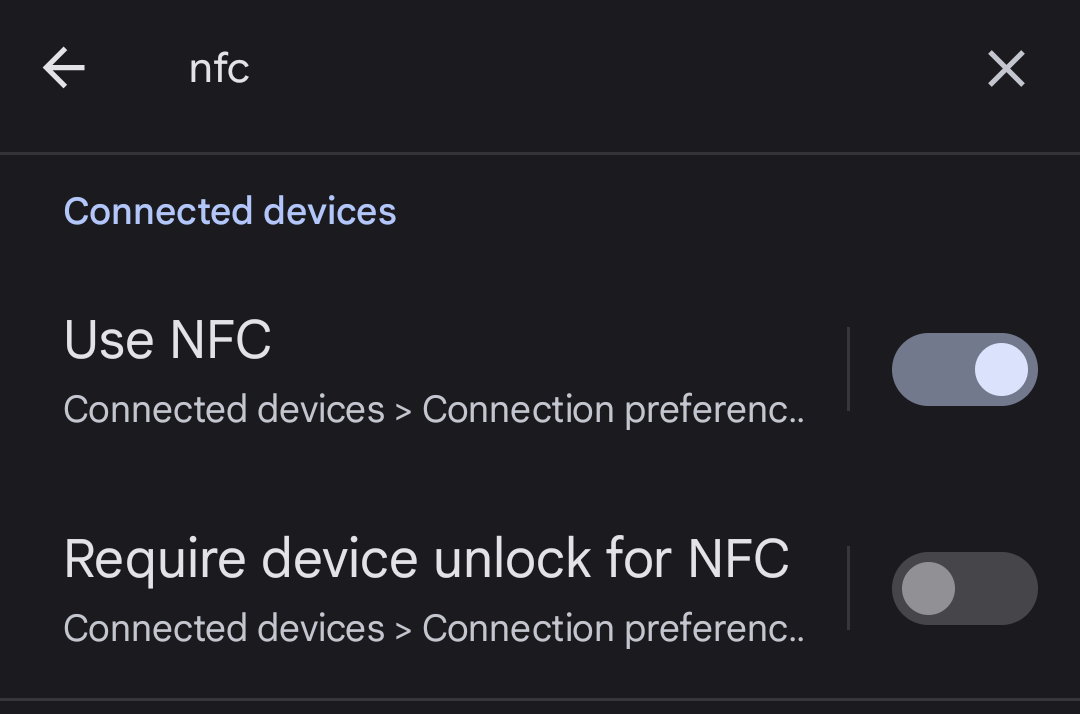
- Pixel and Samsung phones often have an additional setting to enable in Contactless Payments under the NFC settings.
- Ensure you change the Use Default Payment setting to Except When Another Payment App is Open
- Ensure you change the Use Default Payment setting to Except When Another Payment App is Open
- Pixel and Samsung phones often have an additional setting to enable in Contactless Payments under the NFC settings.
- Check your region and language settings
- The language can only be set to English.
- Remove other languages added to your phone.
- You can add the language back to your phone once the card is added to GET
- Change the Region to United States
- Disable locations services for the GET app
- Most people need to open the GET app each day and leave it running in the background. Each Android phone is different, but usually one of the following procedures works. You will have to test to see what works for you phone.
- Open the GET app and login. Hold your phone near the card reader to see if it works. You may need to move the phone around so the card reader can find the NFC antenna on your phone.
- If this works, move on to the next thing to test.
- Having opened the GET app, minimize it (like you are going to open a different app), and hold it close to the reader to see if it reads.
- If this works, move on to the next thing to test.
- If this does not work, then you have to open the GET app each time you want to access a door using your digital card
- Having opened the GET app, lock your phone, but activate it so the screen is on and you see the time (the phone should still be locked). See if it works at the card reader.
- If it works, then each time you want to use it, you will have to activate the screen for the card reader to notice your phone.
- If it doesn’t work, then the previous step is how the digital card works with your phone.
- Open the GET app and login. Hold your phone near the card reader to see if it works. You may need to move the phone around so the card reader can find the NFC antenna on your phone.
- If you are able to open the GET app, please ensure you see your picture.
-
Android - Huawei, Xiaomi, Vivo, Honor, OPPO, 1+ [Chinese Manufacturer ] phones
Once you follow the instructions to add the card to the GET app. Please do the following:
 Change the language of your phone to English
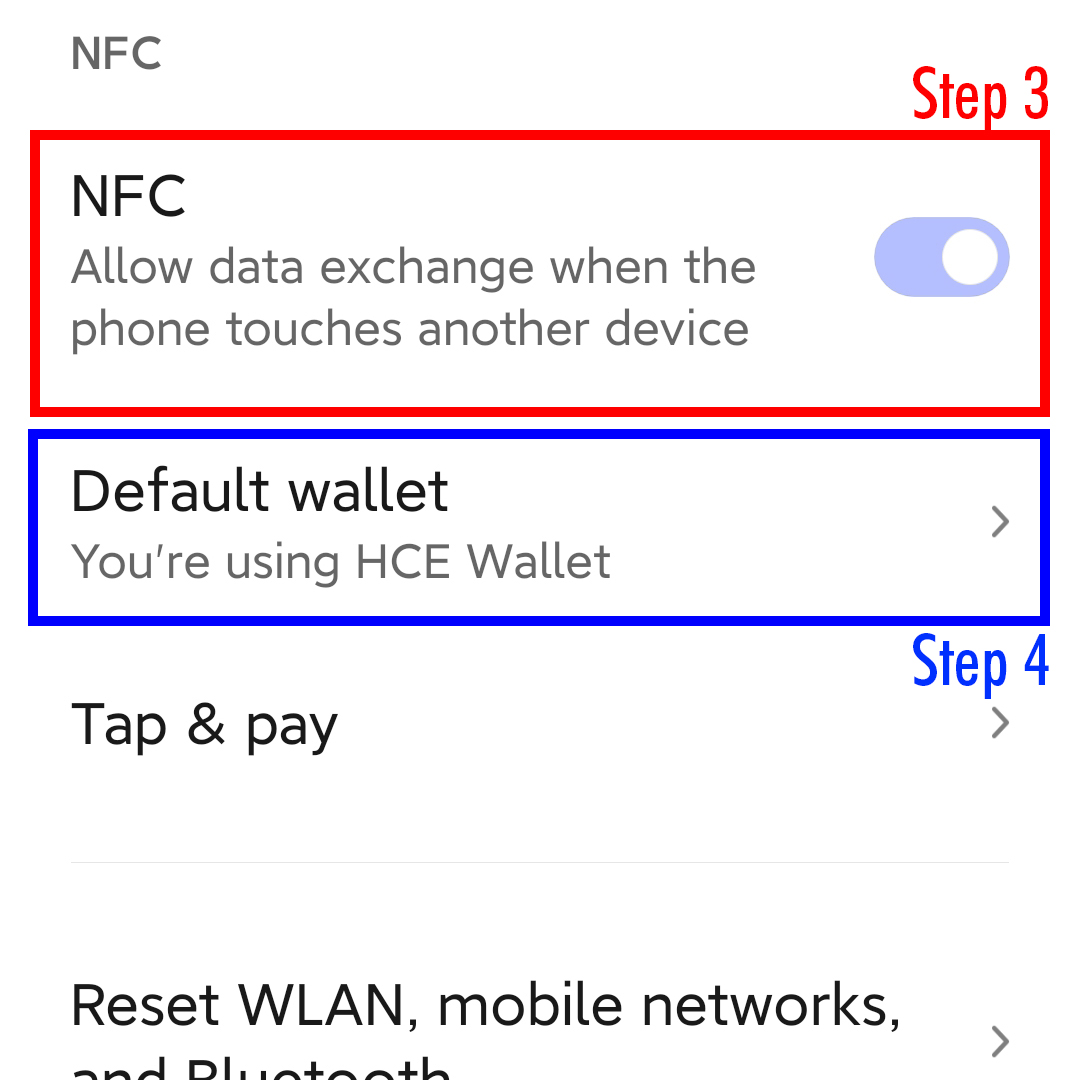
- Open the Settings app and search for NFC
- Enable NFC
- Change the default wallet to anything other than the manufacturer's wallet, examples below
- Xiaomi: SettingsConnections and SharingsNFC and WalletSelect HCE Wallet
- Hauwei: Select Google Wallet/Google Pay
-
GET + DUO sign-in issue (Two-Factor Authentication is Blank)
If you see this the screen below when trying to sign-in to GET the first time, and you have already setup DUO, try the steps below (the problem might be one and not the others).
Ensure your iOS is fully up to date.
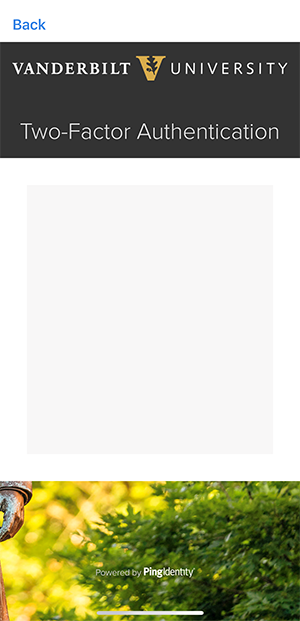 Clear the cache in your web browser (this usually resolves the issue). You may need to Google how to clear the web browser (Safari or Chrome).
- iOS users, if you have Screen Time enabled
Navigate to Settings > Screen Time > Content & Privacy Restrictions > Content Restrictions > Web Content.
- Uncheck Limit Adult Websites to completely disable content restrictions.
- If you do not want to fully disable content restrictions, you can allow duosecurity.com within the Content Restrictions page on the iOS device. This will allow the Duo Prompt to display even if content restrictions are enabled.
- If you have an iPhone and the above did not work...
- Open the Settings app
- Tap General
- Tap Reset
- Reset All Settings
-
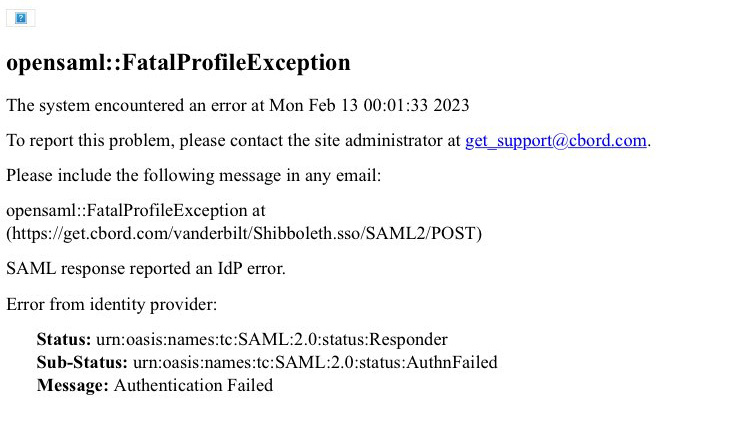
GET + DUO sign-in issue (opensaml::FatalProfileException)
If you see this error below when you try to login to GET (usually you have unsuccessfully tried three times to login) you will see the error below. This means the password you are entering is incorrect. Consistently the best course of action is to reset/change your vunetid password via VUIT's website.
-
Taste of Nashville - Not able to spend funds (denied by rule)
If you receive the error "denied by rule" at a Taste of Nashville location, meaning you are not able to spend funds off-campus, you likely have a financial hold on your account placed by the Office of Student Accounts. You need to speak with them to learn how to clear the hold.
E-mail: student.accounts@vanderbilt.edu
Phone: (615) 322-6693
 , (800) 288-1144
Summer Hours of Operation
Monday - Friday, 8:30 AM - 4 PM
Sarratt Student Center, Suite 184