>

Your Commodore Card on your iPhone and Apple Watch!

New first-year students may claim their Mobile Commodore Card on July 1, 2025

If you are a Vanderbilt student, faculty, or staff member and you use an iPhone (version 6s or higher) or Apple Watch, you may now download the mobile Commodore Card, a digital version of your campus ID.

How to Setup Your Mobile Commodore Card
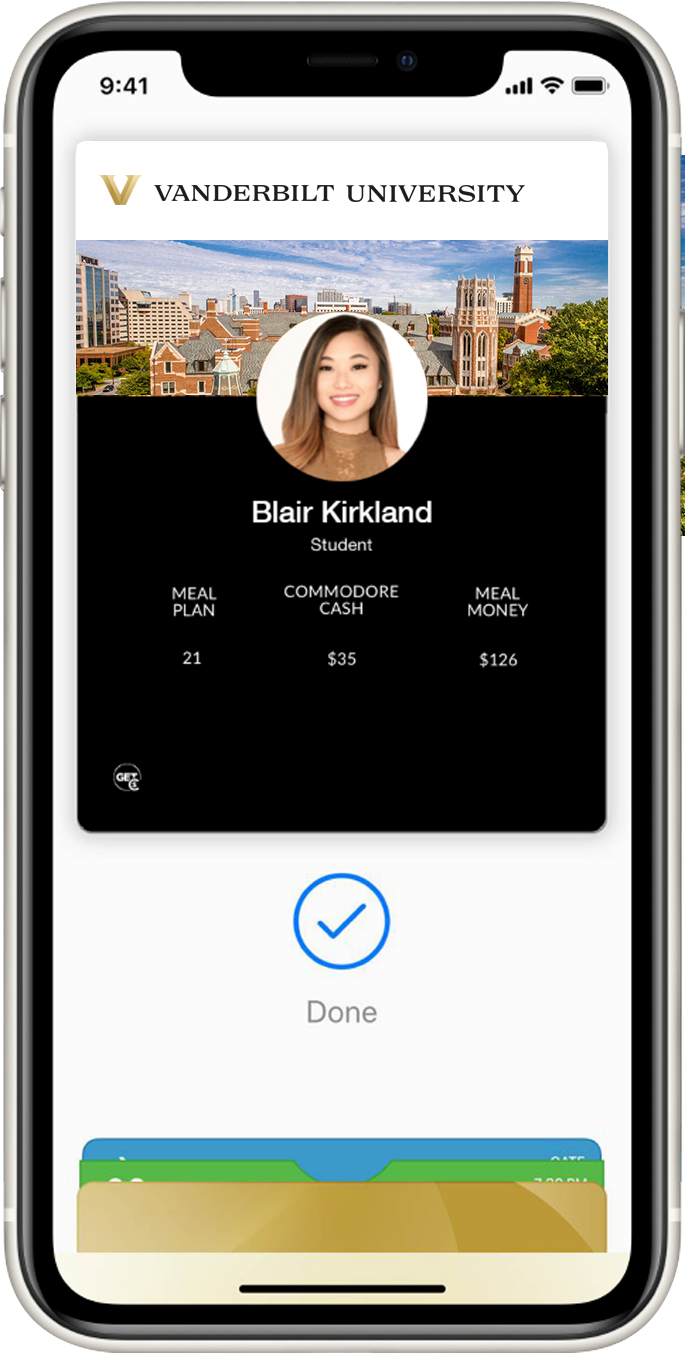
  1. Have a photo submitted and approved
    • If you already have a valid photo on file, please continue reading.
  2. Please follow instructions to setup multi-factor authentication with Okta Verify.
  3. Download, sign-in, and open the GET logo app [GET Mobile by CBORD in the app store]
  4. Tap on Add to Apple Wallet
  5. Follow the steps to add your Commodore Card to your Apple Wallet.
    1. You are only adding the card to one of your devices (iPhone or Apple Watch). To add it to the other device, please repeat step 4 and select the other device.
  6. Once completed, open Apple Wallet to find your mobile Commodore Card among your other cards and passes.

If this did not work, please review our troubleshooting tips here. If you got a new phone, check out these instructions.

Using Mobile Commodore Card
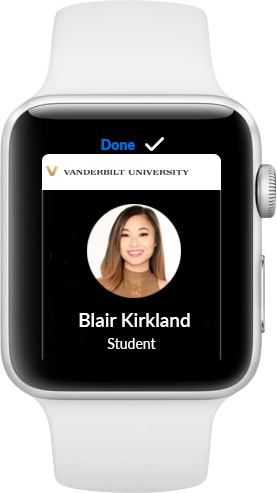
To use your mobile Commodore Card, simply hold your iPhone or Apple Watch near a reader anywhere physical ID cards are accepted. The Commodore Card will work automatically without requiring Face or Touch ID. The mobile Commodore Card can be used at almost any location where you can swipe your card, including residence halls and dining facilities, as well as nearly 40 Taste of Nashville merchants and the Vanderbilt Bookstore. 

“We are also excited about this new option because it provides an added health and safety benefit so students can avoid touching the readers or handing their ID cards to someone else,” Vice Chancellor for Administration Eric Kopstain said. “Additionally, the move from physical cards to a mobile Commodore Card on iPhone and Apple Watch allows for transactions that are safe, convenient, and highly secure." 

Where all can I use it?

  1. Residence Halls and door access
  2. Campus Dining locations
  3. Taste of Nashville partner merchants
  4. vuPrint stations
  5. Student Rec Center
  6. Libraries
  7. Parking
  8. Mail Services
  • What do I need to get started?
    • iPhone SE, iPhone 6s, iPhone 6s Plus or later running the latest version of iOS
    • Apple Watch Series 1 or later running the latest version of watchOS
    • Apple ID signed into iCloud
    • The latest version of the GET Mobile app for adding your Commodore Card to Apple Wallet
    • The solution used by your school card office to confirm identity and generate secure passwords
  • How do I add my CARD to Apple Wallet?

    Go to the App Store on phone 

    • Get the GET Mobile app
      • Select the School – Vanderbilt University
      • Login w/User ID & password
      • Create a PIN
      • Add to Wallet
  • How do I download the GET Mobile app?

    From the App Store on your Apple device, search GET CBORD.  The app is called GET Mobile on the App Store – download the app on your iPhone.

    If you are reading this on your phone, CLICK HERE to download the GET Mobile app.

  • How do I verify my Apple Watch device version?

    The Series # for your Apple Watch can be found on the back of the Watch. Note: Series 0 Apple Watch is not eligible for this program. Instructions to verify and/or update your Apple Watch can be found at https://support.apple.com/en-us/HT204641

  • On how many devices can I use my student ID in the Apple Wallet?

    You can use your student ID card on up to two devices (one iPhone and one Apple Watch) that are signed into iCloud with the same Apple ID.

  • I am not having success adding my Commodore Card to Apple Wallet. Who can help me?

    Contact the Commodore Card office at 615-322-2273 or email commodorecard@vanderbilt.edu. Business hours are Monday – Friday 8:30 am – 4:00 pm.

  • Where do I go for questions about my Apple ID and/ or iCloud?

    Information can be found at https://support.apple.com/apple-id or https://support.apple.com/icloud

  • How do I change or recover my Apple ID password?

    Instructions can be found at https://support.apple.com/en-us/HT201355

  • What happens if I lose my Apple iPhone or Watch? If I find it afterwards?
    • You should use Find My iPhone to suspend or deactivate your Commodore Card in Apple Wallet. Instructions for Lost/Found Apple devices and Find My iPhone are located at https://support.apple.com/en-us/HT201472
    • During Commodore Card Office hours (8:30 – 4:00 pm) contact the Commodore Card office at 615-322-2273 to notify us to deactivate the card in the Wallet for that device. You can also flag the iPhone lost via the Commodore Card website, Vanderbilt Card Services.
    • You can reactivate a found device that was suspended via iCloud.com or contact the Commodore Card Office during 8:30 am – 4:00 pm if deactivated by the Card Office.
  • What happens if I get a new iPhone or Apple Watch?
    • You should first remove your pass from your old device in the Apple Wallet app
    • Once your old pass is removed, you can add your pass to the new device by using the GET app.
    • If you do not have your old phone...
      1. Login to iCloud.com from your computer
      2. Go to Settings
      3. Look for the My Devices section
      4. In the list of devices, remove whichever is your old phone
      5. Once the device is removed, open GET and add your card
  • If I have a passcode on my phone, will I have to enter it every time?

    If you are using express mode, you do not have to do anything. If you are not using express mode, you will have to authenticate each time you access your phone. This is a user security preference.  Note: express mode is turned on by default.

  • Can I use Apple Student ID if my iPhone has a dead battery?

    On iPhone XS, XS Max, XR, and more recent Express Mode with power reserve is available for up to five hours after the device’s battery needs to be charged.

  • Can I use Commodore Card in Apple Wallet on without cellular signal?

    Commodore Card in Apple Wallet can be used even if iPhone or Apple Watch does not have network connectivity, as the Commodore Card is stored on your device. If you are having any difficulty using your Commodore Card to complete a transaction, report any issues to the Commodore Card Office at commodorecard@vanderbilt.edu or call 615-322-2273 so we can investigate.

  • Does it cost anything?

    There is no cost to use your student ID card in Apple Wallet.

  • Do I have to have a photo?

    Yes, an approved photo is required for eligibility.

  • Is this just for students?

    Faculty, staff, and students are eligible as long as they meet all device and software requirements.

  • I have my phone and watch set up. What if I lose one of them?

    Your other device will continue to work; however, you should mark the missing device as lost until your second device is found.

  • How do I use Commodore Card or Meal Money on my account from my phone?

    The same way you have always used your plastic card -- simply tap the reader with your iPhone or Apple Watch instead of your card

  • Will it work with off-campus merchants?

    Yes, you can use your eligible iPhone or Apple Watch at off campus merchants where your plastic card is accepted.

  • What if I have a question that isn’t here in the FAQs?

    Contact the Commodore Card Office at 615-322-2273 or email commodorecard@vanderbilt.edu. Business hours are Monday–Friday from 8:30 am – 4:00 pm. The Commodore Card Disclosure Statement can be found at Vanderbilt Card Services.

  • Why isn't my Physical Plastic Card working?

    Your phone will work just like the physical card did. It works for door access, dining locations, the student rec center, food trucks, events, Barnes and noble,  and Taste of Nashville locations. If you prefer the plastic card you can go to the GET app and flag it “found”. This will disable the mobile credential. If you do provision your phone your card will still work at vending locations, the transit bus system, package lockers, and for printing.